TL;DR: You can build an AI lead qualification agent in n8n in 7 steps without hiring a developer. Connect Google Sheets, add a Groq API key, import the ready workflow, customize your ICP, and test it with sample leads.
The agent reviews each pending lead, scores it from 0 to 100, and labels it hot, warm, or cold. You can use it for your own sales process or customize it for clients.
What does an AI lead qualification agent do in n8n?
An AI lead qualification agent reviews every new lead and tells your sales team who to contact first. It checks the lead against your ideal customer profile, looks for buying signals, and assigns a score and priority label.
In n8n, this is not a chatbot. It is a fixed workflow: a trigger finds the lead, an AI model reviews it, business rules calculate the score, and Google Sheets stores the result.
The agent follows the same basic logic experienced salespeople use. It looks for budget, authority, need, and timeline, often called BANT. The difference is speed: it can review every inquiry in seconds, even when your team is busy.
This guide shows you how to build a working version with Google Sheets and Groq. You will also see how to test it, improve it, and adapt it for clients.
Why build your lead qualifier in n8n?
Most teams lose good leads because nobody reviews them quickly enough. A form submission arrives, sits in an inbox or spreadsheet, and gets checked hours or days later.
An n8n workflow removes that delay. It can scan pending leads on a schedule, score them, and update the same row with a clear result.
n8n also gives you control. You can use an AI model for analysis, but keep the final scoring rules in your own workflow. That makes the system easier to explain, debug, and improve.
If you want to understand how lead scoring fits into a wider sales process, start with lead scoring signals. For a broader comparison of automated and human-led selling, see this guide on AI SDRs versus human SDRs.
What will you build in this n8n workflow?
You will build a sheet-based lead qualification system. A lead enters Google Sheets with the status set to pending. The workflow finds pending rows, qualifies them, and writes the result back to the same row.
The workflow has seven main steps:
- A Manual Trigger starts the workflow during testing.
- Get Pending Leads finds rows where the status is pending.
- A Limit node controls how many leads run at once.
- Normalize Lead cleans the data and adds confidence flags.
- The AI Qualification Agent reviews the lead against your ICP.
- Business Rules Scoring turns that review into a final score.
- Update Sheet saves the score, status, and reasoning.
Three design choices make this workflow dependable:
- AI reviews, rules decide. The AI returns an advisory fit score and BANT signals. JavaScript calculates the final score and applies the hot, warm, and cold thresholds.
- Save first, qualify second. The lead is already in Google Sheets before the AI call. If the API fails, the row stays pending and can run again later.
- Flag weak data. A business email is treated as more reliable than a Gmail address. Missing company details and short messages also lower confidence.
This matters because AI can sound confident even when the data is thin. Confidence flags help your rules avoid turning a weak lead into a hot lead.
What do you need before you start?
You need four things:
- An n8n account. You can start with the free trial, then move to a paid cloud plan if you want the workflow to run continuously. See n8n pricing.
- A Google account for Google Sheets and Google Cloud Console.
- A free Groq account for the AI model. Create your key at console.groq.com.
- The workflow JSON template included in Step 4.
Set aside about 30 minutes for the first setup and test. You do not need to build the workflow from scratch.
How do you create the lead qualification Google Sheet?
Create a new Google Sheet. Add these 15 headers in row 1, in this exact order:
| Column | What it stores | Added by |
|---|---|---|
| lead_id | Unique ID for each lead | You or your lead source |
| name | Lead’s full name | You or your lead source |
| Lead’s email address | You or your lead source | |
| company | Company name | You or your lead source |
| website | Company website | You or your lead source |
| message | Inquiry, form response, or notes | You or your lead source |
| source | Where the lead came from | You or your lead source |
| employees | Company size | You or your lead source |
| role | Lead’s job title or role | You or your lead source |
| status | Workflow status, starting as pending | You or your lead source |
| final_score | Final lead score from 0 to 100 | n8n workflow |
| ai_reasoning | Short AI explanation for the score | n8n workflow |
| data_confidence | AI confidence in the available data | n8n workflow |
| missing_info | Missing or unclear lead details | n8n workflow |
| processed_at | Date and time the lead was processed | n8n workflow |
The first ten columns hold the lead details. The last five columns are where the workflow writes its results.
Now add these ten test leads starting in cell A2. They include strong leads, weak leads, and leads with incomplete data so you can see how the scoring rules behave.
| lead_id | name | company | website | message | source | employees | role | status | |
|---|---|---|---|---|---|---|---|---|---|
| lead_demo_001 | Sarah Mitchell | [email protected] | Acme Corp | https://acmecorp.com | We need to automate lead routing for our 200-person sales team, budget approved for this quarter. Please share a demo. | demo_request | 200 | VP of Sales | pending |
| lead_demo_002 | Tom Jones | [email protected] | Just checking out options for now. | newsletter | pending | ||||
| lead_demo_003 | Ayesha Raza | [email protected] | BrightTech | https://brighttech.io | Exploring AI tools for our sales process, team of 45, decision early next year. | contact_form | 45 | Founder | pending |
| lead_demo_004 | Michael Carter | [email protected] | Northwind | https://northwind.io | We need help qualifying inbound demo requests. Our sales team is missing follow-ups. | demo_request | 120 | Head of Sales | pending |
| lead_demo_005 | Priya Sharma | [email protected] | What does your service cost? | pricing | pending | ||||
| lead_demo_006 | David Lee | [email protected] | CloudLine | https://cloudline.co | We are comparing automation tools for our 30-person marketing team. Can you share pricing? | pricing | 30 | Marketing Manager | pending |
| lead_demo_007 | Emma Wilson | [email protected] | BluePeak | https://bluepeak.com | We received your details from a partner. We need a CRM cleanup and lead routing setup. | referral | 80 | Operations Director | pending |
| lead_demo_008 | Ali Khan | [email protected] | FastGrowth | Looking for automation support for our sales process. | contact_form | 60 | Founder | pending | |
| lead_demo_009 | Laura Bennett | [email protected] | Saw your ad and wanted to learn more. | paid_ads | pending | ||||
| lead_demo_010 | Omar Sheikh | [email protected] | Vertex Labs | https://vertexlabs.ai | We need to qualify leads from LinkedIn, forms, and email campaigns. Budget is approved for next quarter. | demo_request | 150 | VP of Growth | pending |
Every row starts with the status pending. That is the condition the workflow looks for. When you connect real lead sources later, they only need to add rows with this status.
How do you get a free Groq API key?
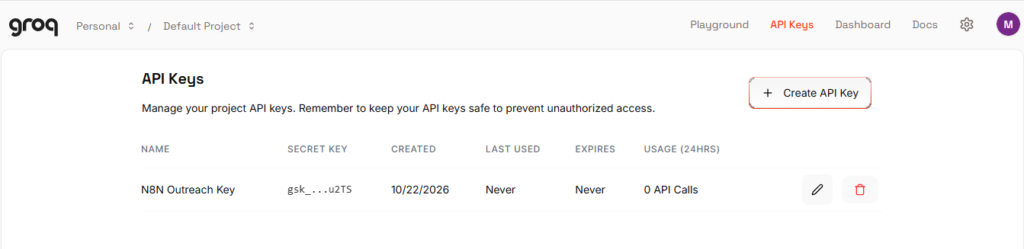
Groq is a practical default because it hosts fast models at low cost. Go to console.groq.com, create an account, and open the API Keys section.
Click Create API Key and copy it somewhere safe. You will add it to n8n in Step 5.
The template uses Groq’s qwen/qwen3.8-27b model. You can swap it for another provider later without changing the rest of the workflow. Groq lists this model as a preview model, so check its current status before using it in a live client system.
How do you connect Google Sheets to n8n?
This is usually the longest setup step, but you only do it once. n8n needs permission to read and update your Google Sheet.
- Open Google Cloud Console and create a new project. Name it something clear, such as n8n-automation.
- Go to APIs and Services and enable the Google Sheets API and Google Drive API.
- Open OAuth consent screen, choose External, add your app name and email, and add your own Google account as a test user.
- Go to Credentials and create an OAuth client ID for a Web application.
- In n8n, open a Google Sheets node and choose Create new credential. Copy the OAuth Redirect URL n8n shows you.
- Paste that redirect URL into the Authorized redirect URIs field in Google Cloud Console.
- Copy the Client ID and Client Secret into n8n, click Connect, and sign in with the same Google account.
Once the credential connects, you can reuse it in every Google Sheets node. You do not need to repeat this process for each workflow.
How do you import the workflow JSON into n8n?
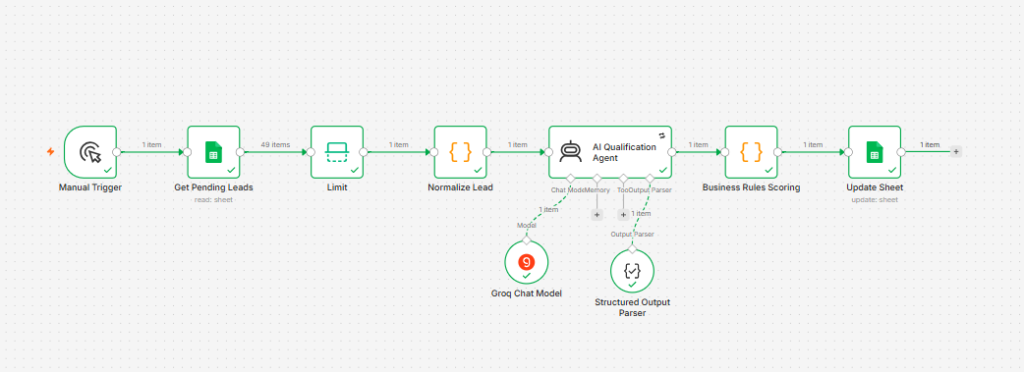
Copy the complete JSON below. Open n8n, create a new workflow, and paste it directly onto the canvas using Ctrl+V on Windows or Cmd+V on Mac.
n8n will create the nodes and connections automatically. You can also use the three-dot menu at the top right and choose Import from File.
The JSON template includes nine working nodes and four sticky notes. The sticky notes explain the sheet setup, AI model, ICP, and production settings.
{
  "name": "AI Lead Qualification Agent (Sheet Based) - Blog Template",
  "nodes": [
    {
      "parameters": {
        "content": "## 🤖 AI Lead Qualification Agent (Sheet Based) - Setup\n\n**Design principle:** *AI explains why, business rules decide the score.* Leads enter the Google Sheet as `pending` (from any form or manual entry). This workflow picks up every pending row, scores it, and updates the same row. If the AI API fails, the row stays `pending` and is retried on the next run - no lead is ever lost.\n\n**Setup (4 steps):**\n1. **Google Sheets** - create a sheet with these headers in row 1:\n`lead_id, name, email, company, website, message, source, employees, role, status, final_score, ai_reasoning, data_confidence, missing_info, processed_at`\n2. Open both orange **Google Sheets** nodes → select your spreadsheet + worksheet → connect your Google credential.\n3. **Groq Chat Model** - connect your Groq credential (free tier works; qwen3.8-27b default). Swap for OpenAI / Claude / Gemini if you prefer.\n4. Add rows with `status = pending`, then click **Execute workflow**.\n\n**Flow:** Manual Trigger → Get Pending Leads → Limit → Normalize → AI Qualification Agent → Business Rules Scoring → Update Sheet\n\n**Thresholds (edit in Business Rules Scoring):** hot ≥ 75 · warm 50-74 · cold < 50 · low-confidence data can never auto-qualify as hot.",
        "height": 660,
        "width": 460,
        "color": 4
      },
      "id": "93fd4775-936b-4380-8213-31fdbc588607",
      "name": "Sticky Note",
      "type": "n8n-nodes-base.stickyNote",
      "typeVersion": 1,
      "position": [
        -112,
        0
      ]
    },
    {
      "parameters": {},
      "id": "09747c2d-db18-4aed-8d9e-589c23d55a19",
      "name": "Manual Trigger",
      "type": "n8n-nodes-base.manualTrigger",
      "typeVersion": 1,
      "position": [
        656,
        144
      ]
    },
    {
      "parameters": {
        "documentId": {
          "__rl": true,
          "value": "",
          "mode": "list"
        },
        "sheetName": {
          "__rl": true,
          "value": "",
          "mode": "list"
        },
        "filtersUI": {
          "values": [
            {
              "lookupColumn": "status",
              "lookupValue": "pending"
            }
          ]
        },
        "options": {}
      },
      "id": "16c85ded-0393-427d-84a0-3f1c7052cf9c",
      "name": "Get Pending Leads",
      "type": "n8n-nodes-base.googleSheets",
      "typeVersion": 4.5,
      "position": [
        880,
        144
      ]
    },
    {
      "parameters": {},
      "id": "5566c87f-c394-4669-a352-e8b5fbc84751",
      "name": "Limit",
      "type": "n8n-nodes-base.limit",
      "typeVersion": 1,
      "position": [
        1104,
        144
      ]
    },
    {
      "parameters": {
        "mode": "runOnceForEachItem",
        "jsCode": "const b = $json;\nconst email = (b.email || '').toString().trim().toLowerCase();\nconst generic = ['gmail.com','yahoo.com','hotmail.com','outlook.com','live.com','icloud.com','proton.me','protonmail.com'];\nconst domain = email.includes('@') ? email.split('@')[1] : '';\nconst isGeneric = generic.includes(domain);\nconst message = (b.message || '').toString();\n\nreturn {\n  json: {\n    lead_id: String(b.lead_id || ''),\n    name: b.name || '',\n    email,\n    company: b.company || '',\n    website: b.website || '',\n    message,\n    source: b.source || 'unknown',\n    employees: b.employees || '',\n    role: b.role || '',\n    confidence_flags: {\n      email: email ? (isGeneric ? 'low' : 'verified') : 'missing',\n      company: b.company ? 'verified' : 'guess',\n      website: b.website ? 'verified' : 'missing',\n      message: message.length >= 20 ? 'verified' : 'low'\n    }\n  }\n};"
      },
      "id": "799d5b7c-1373-4202-b925-530c78f0ad29",
      "name": "Normalize Lead",
      "type": "n8n-nodes-base.code",
      "typeVersion": 2,
      "position": [
        1328,
        144
      ]
    },
    {
      "parameters": {
        "promptType": "define",
        "text": "=Lead data:\n\n{{ JSON.stringify($json) }}\n\nAnalyze this lead against the ICP and return your structured assessment.",
        "hasOutputParser": true,
        "options": {
          "systemMessage": "You are a B2B sales lead qualification analyst. Analyze the lead against our Ideal Customer Profile (ICP).\n\nICP (EDIT FOR YOUR BUSINESS):\n- Target industries: B2B SaaS, technology, professional services\n- Company size: 10-500 employees\n- Target roles: founder, CEO, sales/marketing/operations leader\n- Buying signals: interest in automation, AI tools, CRM, lead management, pricing\n\nUse BANT (Budget, Authority, Need, Timeline) where visible.\n\nSTRICT RULES:\n1. Use ONLY the data provided. NEVER invent missing details.\n2. List missing or unclear fields in missing_info.\n3. Set data_confidence to low when data is thin (no company, generic email, very short message).\n4. icp_fit_score is an ADVISORY 0-100 estimate only. Business rules decide the final score.\n5. reasoning must be 2-4 short evidence-based sentences."
        }
      },
      "id": "91c5b7cb-b085-48b6-84f8-f704ea2cb412",
      "name": "AI Qualification Agent",
      "type": "@n8n/n8n-nodes-langchain.agent",
      "typeVersion": 1.7,
      "position": [
        1536,
        144
      ],
      "retryOnFail": true,
      "maxTries": 3,
      "waitBetweenTries": 5000
    },
    {
      "parameters": {
        "schemaType": "manual"
      },
      "id": "df0954fd-9f25-4259-8efd-8a7e92e60dae",
      "name": "Structured Output Parser",
      "type": "@n8n/n8n-nodes-langchain.outputParserStructured",
      "typeVersion": 1.2,
      "position": [
        1648,
        368
      ]
    },
    {
      "parameters": {
        "mode": "runOnceForEachItem",
        "jsCode": "const lead = $('Normalize Lead').item.json;\nconst raw = $json.output !== undefined ? $json.output : $json;\nlet ai;\nif (typeof raw === 'string') { try { ai = JSON.parse(raw); } catch (e) { ai = null; } } else { ai = raw; }\n\nif (!ai || typeof ai !== 'object') {\n  return { json: { lead_id: lead.lead_id, status: 'error', final_score: 0, ai_reasoning: 'AI output missing or unparsable', data_confidence: 'low', missing_info: '', processed_at: new Date().toISOString() } };\n}\n\nlet score = 0;\nconst f = lead.confidence_flags;\nif (f.email === 'verified') score += 15; else if (f.email === 'low') score += 5;\nif (lead.company) score += 10;\nif (lead.website) score += 5;\nconst len = (lead.message || '').length;\nif (len >= 100) score += 10; else if (len >= 20) score += 5;\n\nconst aiFit = Math.max(0, Math.min(100, Number(ai.icp_fit_score) || 0));\nconst w = ai.data_confidence === 'low' ? 0.25 : (ai.data_confidence === 'medium' ? 0.4 : 0.5);\nscore += Math.round(aiFit * w);\n\nconst sig = (v) => (typeof v === 'string' ? v.toLowerCase() : 'unknown');\nconst budget = sig(ai.budget_signal);\nconst authority = sig(ai.authority_signal);\nif (budget === 'high') score += 10; else if (budget === 'medium') score += 5;\nif (authority === 'high') score += 10; else if (authority === 'medium') score += 5;\n\nconst hot = ['demo_request','contact_form','pricing','referral'];\nif (hot.includes(String(lead.source).toLowerCase())) score += 10;\n\nconst finalScore = Math.max(0, Math.min(100, score));\nlet q = finalScore >= 75 ? 'hot' : (finalScore >= 50 ? 'warm' : 'cold');\nif (ai.data_confidence === 'low' && q === 'hot') q = 'warm';\n\nreturn {\n  json: {\n    lead_id: lead.lead_id,\n    status: q,\n    final_score: finalScore,\n    ai_reasoning: ai.reasoning || '',\n    data_confidence: ai.data_confidence || '',\n    missing_info: (ai.missing_info || []).join(', '),\n    processed_at: new Date().toISOString()\n  }\n};"
      },
      "id": "abbb810e-8b71-49a4-a75e-74603efbd541",
      "name": "Business Rules Scoring",
      "type": "n8n-nodes-base.code",
      "typeVersion": 2,
      "position": [
        1856,
        144
      ]
    },
    {
      "parameters": {
        "operation": "update",
        "documentId": {
          "__rl": true,
          "value": "",
          "mode": "list"
        },
        "sheetName": {
          "__rl": true,
          "value": "",
          "mode": "list"
        },
        "columns": {
          "mappingMode": "defineBelow",
          "matchingColumns": [
            "lead_id"
          ],
          "schema": [
            {
              "canBeUsedToMatch": true,
              "defaultMatch": false,
              "display": true,
              "displayName": "lead_id",
              "id": "lead_id",
              "required": false,
              "type": "string"
            },
            {
              "canBeUsedToMatch": true,
              "defaultMatch": false,
              "display": true,
              "displayName": "status",
              "id": "status",
              "required": false,
              "type": "string"
            },
            {
              "canBeUsedToMatch": true,
              "defaultMatch": false,
              "display": true,
              "displayName": "final_score",
              "id": "final_score",
              "required": false,
              "type": "string"
            },
            {
              "canBeUsedToMatch": true,
              "defaultMatch": false,
              "display": true,
              "displayName": "ai_reasoning",
              "id": "ai_reasoning",
              "required": false,
              "type": "string"
            },
            {
              "canBeUsedToMatch": true,
              "defaultMatch": false,
              "display": true,
              "displayName": "data_confidence",
              "id": "data_confidence",
              "required": false,
              "type": "string"
            },
            {
              "canBeUsedToMatch": true,
              "defaultMatch": false,
              "display": true,
              "displayName": "missing_info",
              "id": "missing_info",
              "required": false,
              "type": "string"
            },
            {
              "canBeUsedToMatch": true,
              "defaultMatch": false,
              "display": true,
              "displayName": "processed_at",
              "id": "processed_at",
              "required": false,
              "type": "string"
            }
          ],
          "value": {
            "ai_reasoning": "={{ $json.ai_reasoning }}",
            "data_confidence": "={{ $json.data_confidence }}",
            "final_score": "={{ $json.final_score }}",
            "lead_id": "={{ $json.lead_id }}",
            "missing_info": "={{ $json.missing_info }}",
            "processed_at": "={{ $json.processed_at }}",
            "status": "={{ $json.status }}"
          }
        },
        "options": {}
      },
      "id": "832aea44-75b3-4700-9a32-fe9962cacacb",
      "name": "Update Sheet",
      "type": "n8n-nodes-base.googleSheets",
      "typeVersion": 4.5,
      "position": [
        2080,
        144
      ]
    },
    {
      "parameters": {
        "model": "qwen/qwen3.8-27b",
        "options": {}
      },
      "type": "@n8n/n8n-nodes-langchain.lmChatGroq",
      "typeVersion": 1,
      "position": [
        1456,
        352
      ],
      "id": "6baf8755-ed49-426f-92ff-3c85dffe287d",
      "name": "Groq Chat Model"
    },
    {
      "parameters": {
        "content": "### 🟠 Google Sheets - 2 nodes, YOUR data\nBoth orange nodes need YOUR account:\n1. Click **Get Pending Leads** → choose your Google credential → pick your Spreadsheet + Worksheet.\n2. Click **Update Sheet** → same credential → same spreadsheet + worksheet.\n3. Sheet headers (row 1):\n`lead_id, name, email, company, website, message, source, employees, role, status, final_score, ai_reasoning, data_confidence, missing_info, processed_at`\n\nNew leads enter the sheet with `status = pending` (from any form or manual entry).",
        "height": 320,
        "width": 440,
        "color": 3
      },
      "id": "sticky-sheets-01",
      "name": "Sticky Note - Sheets Setup",
      "type": "n8n-nodes-base.stickyNote",
      "typeVersion": 1,
      "position": [
        800,
        -360
      ]
    },
    {
      "parameters": {
        "content": "### 🤖 AI Model + ICP + Output Schema\n- **Groq Chat Model** → connect YOUR Groq API key (free at console.groq.com). Swappable: OpenAI / Claude / Gemini - just attach a different Chat Model node here.\n- **AI Qualification Agent → system message** → EDIT the ICP lines for YOUR business: industries, company size, roles, buying signals.\n- **Structured Output Parser** → open it and paste this JSON example so the output schema is strictly enforced:\n\n`{ \"icp_fit_score\": 65, \"reasoning\": \"2-4 evidence-based sentences\", \"budget_signal\": \"high | medium | low | unknown\", \"authority_signal\": \"high | medium | low | unknown\", \"need_summary\": \"one sentence on the stated need\", \"timeline\": \"immediate | this-quarter | unknown\", \"missing_info\": [], \"data_confidence\": \"high | medium | low\" }`",
        "height": 340,
        "width": 470,
        "color": 6
      },
      "id": "sticky-ai-01",
      "name": "Sticky Note - AI Model",
      "type": "n8n-nodes-base.stickyNote",
      "typeVersion": 1,
      "position": [
        1430,
        -420
      ]
    },
    {
      "parameters": {
        "content": "### ⚙️ Before Production - 3 checks\n- **Limit node**: default processes only **1 lead per run** → raise Max Items (e.g. 25).\n- **Manual Trigger**: replace with a **Schedule Trigger** (e.g. every 15 min) so pending leads qualify automatically 24/7.\n- **Test first**: add 2-3 rows with `status = pending` (one strong lead, one thin lead) → Execute workflow → verify scores update in the sheet.\n\n**Failure behaviour:** if the AI API fails, the row keeps `status = pending` and is retried on the next run - no lead is lost. Unparsable AI output gets `status = error` (no infinite loop).",
        "height": 300,
        "width": 440,
        "color": 5
      },
      "id": "sticky-prod-01",
      "name": "Sticky Note - Production",
      "type": "n8n-nodes-base.stickyNote",
      "typeVersion": 1,
      "position": [
        560,
        340
      ]
    }
  ],
  "pinData": {},
  "connections": {
    "Manual Trigger": {
      "main": [
        [
          {
            "node": "Get Pending Leads",
            "type": "main",
            "index": 0
          }
        ]
      ]
    },
    "Get Pending Leads": {
      "main": [
        [
          {
            "node": "Limit",
            "type": "main",
            "index": 0
          }
        ]
      ]
    },
    "Limit": {
      "main": [
        [
          {
            "node": "Normalize Lead",
            "type": "main",
            "index": 0
          }
        ]
      ]
    },
    "Normalize Lead": {
      "main": [
        [
          {
            "node": "AI Qualification Agent",
            "type": "main",
            "index": 0
          }
        ]
      ]
    },
    "AI Qualification Agent": {
      "main": [
        [
          {
            "node": "Business Rules Scoring",
            "type": "main",
            "index": 0
          }
        ]
      ]
    },
    "Business Rules Scoring": {
      "main": [
        [
          {
            "node": "Update Sheet",
            "type": "main",
            "index": 0
          }
        ]
      ]
    },
    "Structured Output Parser": {
      "ai_outputParser": [
        [
          {
            "node": "AI Qualification Agent",
            "type": "ai_outputParser",
            "index": 0
          }
        ]
      ]
    },
    "Groq Chat Model": {
      "ai_languageModel": [
        [
          {
            "node": "AI Qualification Agent",
            "type": "ai_languageModel",
            "index": 0
          }
        ]
      ]
    }
  },
  "active": false,
  "settings": {
    "executionOrder": "v1"
  },
  "versionId": "49f63fb7-84c6-44e1-92a1-c65e427880e3",
  "meta": {
    "templateCredsSetupCompleted": false
  },
  "nodeGroups": [],
  "id": "NNh07yktvpDxRUYH",
  "tags": []
}
What does each node in the n8n workflow do?
Before you connect your accounts, it helps to understand what each node does. This makes it easier to find the right node when something does not work.
The workflow follows one simple path: find pending leads, clean the data, ask the AI for an assessment, apply scoring rules, then update the sheet.
Manual Trigger
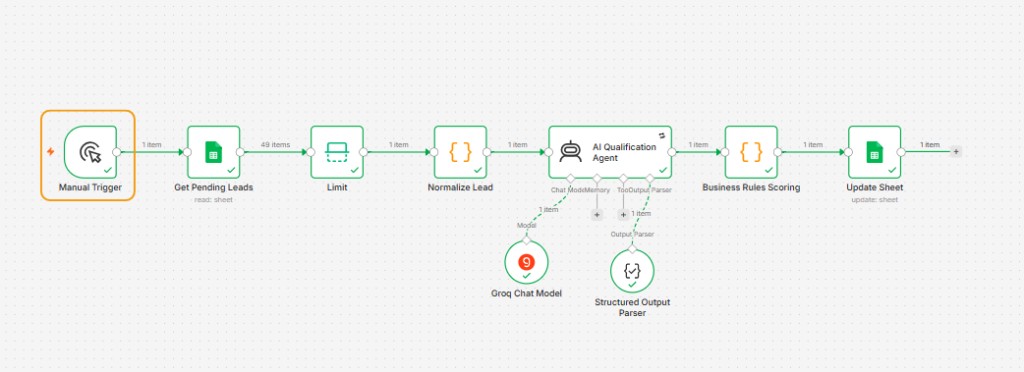
The Manual Trigger starts the workflow when you click Execute workflow. It is useful while you test the setup with dummy leads.
For production, replace it with a Schedule Trigger. That way, the workflow can check for pending leads automatically.
If it does not run: check that you clicked Execute workflow, not Save. Also confirm the workflow is not paused.
Get Pending Leads
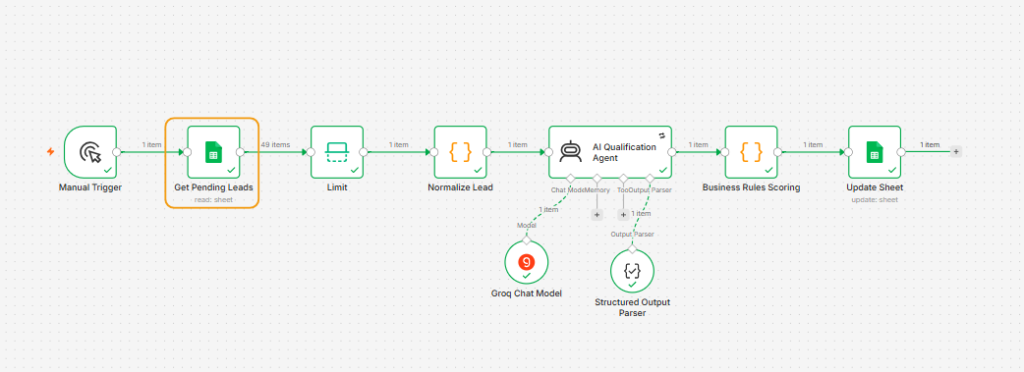
This Google Sheets node reads rows from your sheet where the status column says pending. It is the starting point for every qualification run.
If it returns no leads: check three things. Make sure the status value is exactly pending, confirm you selected the correct spreadsheet and worksheet, and check that the header row matches the template.
If you see a permission error: reconnect the Google credential in n8n. Then confirm the Google account has access to the sheet.
Limit
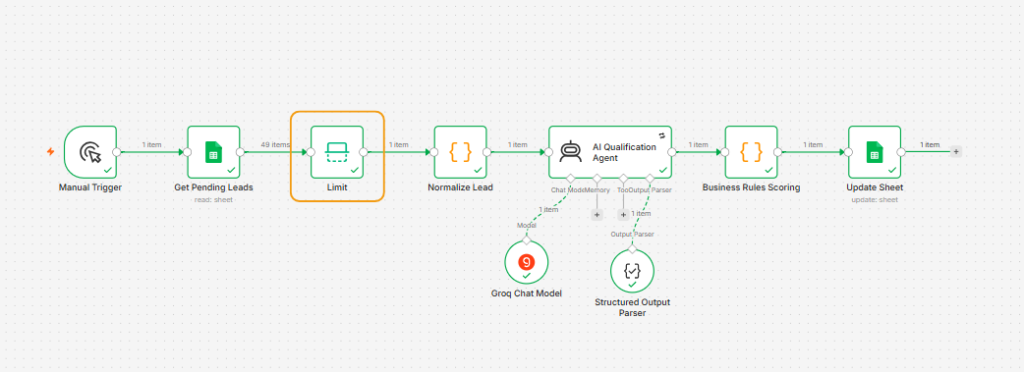
The Limit node controls how many pending leads the workflow processes in one run. The template is set to one lead so you can test safely.
Once testing works, increase the limit to 25 or another manageable batch size.
If the workflow processes too many leads: lower the Max Items value. This is useful when you are still testing the AI prompt or scoring rules.
Normalize Lead
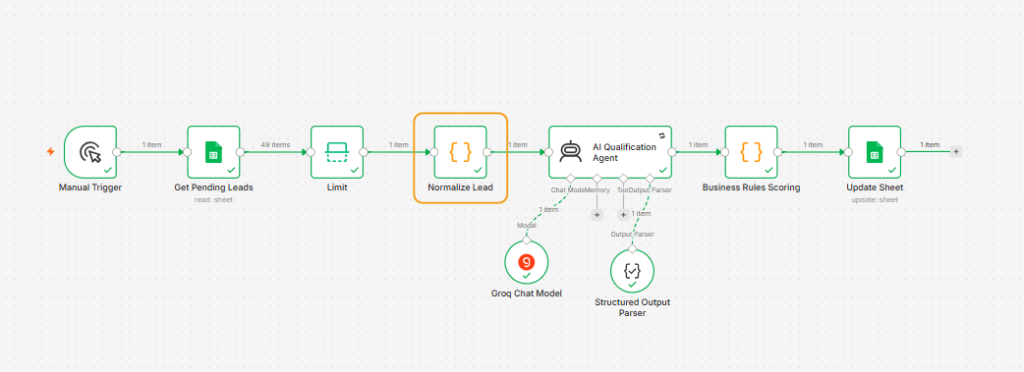
This Code node cleans the lead data before the AI sees it. It lowercases the email, creates confidence flags, and checks whether the email domain is business-based or generic.
It also marks missing company details, missing websites, and short messages as lower-confidence data.
If this node fails: open the node and check the input data. The most common issue is an empty email field or a lead row with missing required columns.
If confidence flags look wrong: check the email domain. The node treats Gmail, Yahoo, Outlook, and similar domains as generic email providers.
AI Qualification Agent
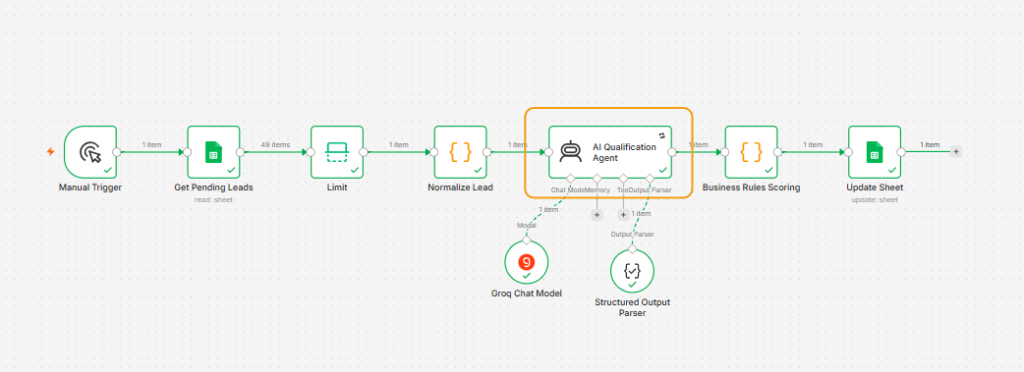
This is the main AI node. It sends the cleaned lead data to the AI model and asks it to assess the lead against your ideal customer profile.
The AI returns an advisory fit score, BANT signals, reasoning, missing information, and a data confidence level.
If the node fails: check your AI credential first. An expired or incorrect API key is the most common cause.
If the AI output looks incomplete: open the Structured Output Parser and confirm the JSON schema is added. Also check that the system message still includes the instruction to return only the provided data.
If the AI invents company details: strengthen the system message. Tell the model to use only the data provided and to list unknown details in missing_info.
Structured Output Parser
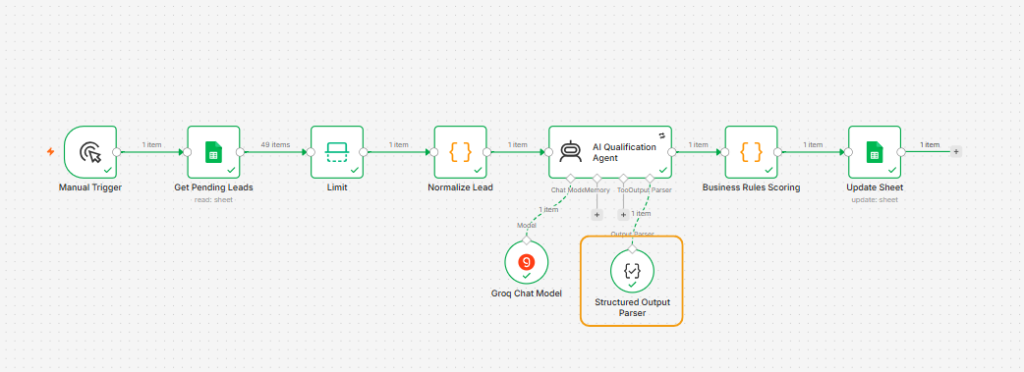
This node helps the AI return consistent JSON instead of free-form text. It defines the fields the workflow expects, such as icp_fit_score, budget_signal, authority_signal, and data_confidence.
If the AI response cannot be parsed: check that the JSON schema is valid. A missing comma, extra bracket, or incorrect field name can break the output.
If fields are missing: compare the parser schema with the JSON example in the AI Model sticky note. Both must use the same field names.
Business Rules Scoring
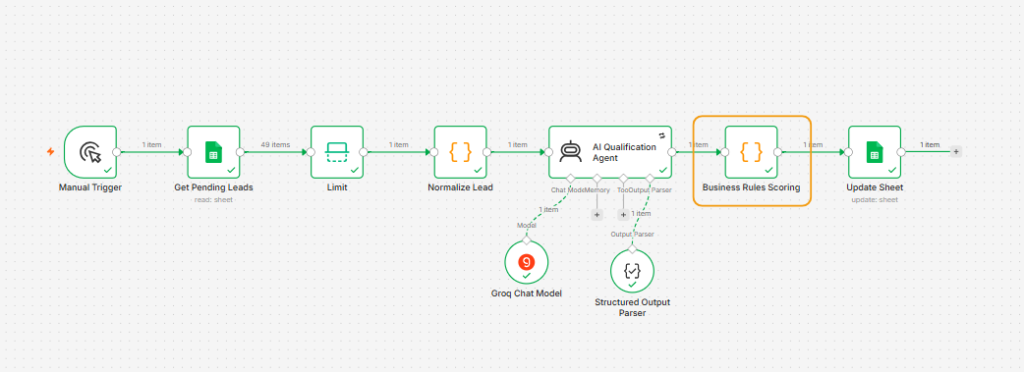
This Code node calculates the final score. It uses the confidence flags, message length, company details, AI fit estimate, BANT signals, and lead source.
It then applies the thresholds: 75 or higher is hot, 50 to 74 is warm, and below 50 is cold.
If every lead becomes cold: check the AI output and confidence flags. Weak data, generic emails, and low AI confidence reduce the score.
If weak leads become hot: lower the hot threshold or reduce the weight of the AI fit score. You can also add stricter rules for missing company data.
If you want different scoring: edit the points inside this node. For example, increase the points for demo requests, pricing pages, or referrals if those sources matter most to your sales team.
Update Sheet
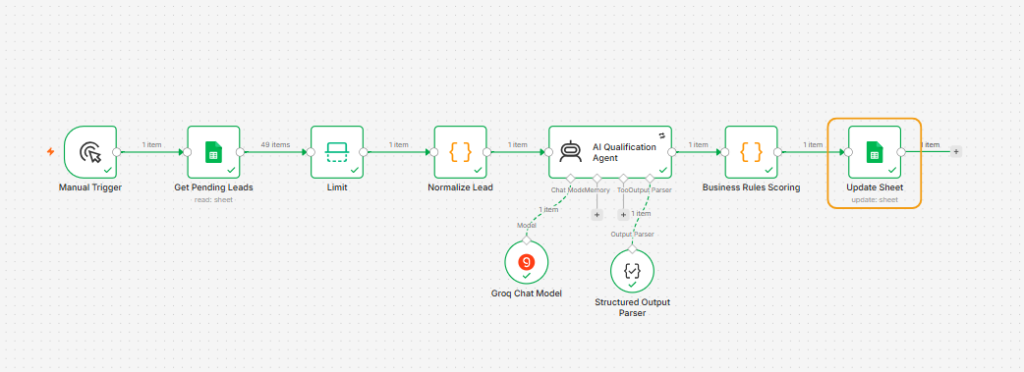
This Google Sheets node writes the result back to the original lead row. It updates the status, final score, AI reasoning, confidence level, missing information, and processing time.
It matches rows using the lead_id column, so it updates the existing row instead of creating a duplicate.
If results do not save: confirm that the Update Sheet node uses the same spreadsheet and worksheet as Get Pending Leads.
If the wrong row updates: check the lead_id values in your sheet. Each lead needs a unique ID. Duplicate IDs can cause the workflow to update the wrong record.
If you see a column mapping error: open the node and refresh the sheet columns. Then confirm that all output columns exist in row 1 of your Google Sheet.
Groq Chat Model
This node connects the workflow to Groq’s AI model. The template uses qwen/qwen3.8-27b, but you can replace it with another supported model.
If the model does not appear: reconnect your Groq credential and refresh the model list in n8n.
If you get a model error: confirm the model ID is still available in your Groq account. Model availability can change, especially for preview models.
If responses are slow or inconsistent: test another model. A different model may better follow your ICP and structured output instructions.
Quick troubleshooting checklist
If the workflow fails, use this order to find the problem:
- Open the failed execution in n8n and click the red node.
- Check whether the issue is a credential, missing data, or an AI output problem.
- Confirm the Google Sheet headers match the template exactly.
- Confirm each lead has a unique lead_id and a status of pending.
- Run the workflow again with one test lead after making a change.
This node-by-node view also helps when you customize the workflow for a client. You will know exactly where to change the ICP, scoring weights, storage layer, or alert rules.
How do you connect credentials and customize the ICP?
After importing the workflow, three nodes will show a credential warning. That is normal. It shows where your own accounts need to connect.
- Get Pending Leads: select your Google credential, then choose your spreadsheet and worksheet.
- Update Sheet: select the same credential, spreadsheet, and worksheet.
- Groq Chat Model: create a new credential and paste your Groq API key.
Next, open the AI Qualification Agent node. Change the ICP lines in the system message so they match your business.
Add your target industries, company size range, decision-maker roles, and buying signals. This is the most important customization because the AI uses these details to judge every lead.
Then open the Structured Output Parser node. Paste this JSON example so the AI returns consistent, machine-readable fields:
{
  "icp_fit_score": 65,
  "reasoning": "2-4 evidence-based sentences",
  "budget_signal": "high | medium | low | unknown",
  "authority_signal": "high | medium | low | unknown",
  "need_summary": "one sentence on the stated need",
  "timeline": "immediate | this-quarter | unknown",
  "missing_info": ["company website", "team size"],
  "data_confidence": "high | medium | low"
}
Which AI model should you use for lead qualification?
Groq is a good starting point because it is fast and offers a free way to test the workflow. But it is not your only option.
Use the table below to choose a model based on your budget, privacy needs, and workflow complexity. Free tiers and rate limits change often, so check the provider’s current pricing page before you launch.
| AI provider | Model or access | Pros | Cons | Best for |
|---|---|---|---|---|
| Groq | Qwen3.8-27B and other hosted models | Very fast responses, simple API, useful free access for testing | Free-tier limits can change, and preview models may be discontinued | Fast, low-cost testing and small-scale lead qualification |
| Google AI Studio | Gemini models | Strong free tier for testing, good multimodal options, easy Google ecosystem fit | Free usage may have data-training implications and rate limits | Teams already using Google Workspace |
| OpenRouter | Multiple models through one API | Lets you test many models without creating separate accounts, includes free-model options | Model quality and data policies vary by provider | Comparing models before committing to one |
| Mistral AI | Mistral models | Open-weight options, competitive pricing, useful free access for evaluation | May need more testing for complex B2B qualification prompts | Cost-conscious teams and European data considerations |
| Anthropic | Claude models | Strong reasoning and careful long-form analysis | Usually more expensive than free or low-cost alternatives | Complex ICP rules and detailed lead research |
| OpenAI | GPT models | Wide n8n support, strong general performance, large ecosystem | Costs can rise quickly at high lead volume | Teams that want a familiar, well-supported default |
| Cloudflare Workers AI | Hosted open models | Free-tier access and edge deployment options | Fewer advanced model choices than larger AI platforms | Developers who already use Cloudflare |
| Cohere | Command models | Free-tier access and enterprise-focused tools | Less commonly used in beginner n8n tutorials | Teams exploring enterprise search and RAG workflows |
For this build, start with Groq. Once the workflow works, test the same three dummy leads with another model and compare the results.
Free options such as Google AI Studio, OpenRouter, Mistral, Cloudflare Workers AI, and Cohere can work well for testing. For a client’s production system, review rate limits, data handling, and model stability before you choose one.
How do you test the workflow with dummy leads?
Your sheet already has ten pending leads (only 3 leads are shown below ). Open n8n and click Execute workflow.
Within a minute, refresh Google Sheets. The status column should change from pending to hot, warm, or cold. The final_score column should show a number from 0 to 100.
| Test lead | Expected result |
|---|---|
| Sarah Mitchell, Acme Corp | High score and hot status. The reasoning should mention budget approval and team size. |
| Tom Jones, Gmail | Low score and cold status. The missing_info column should point to the missing company and website. |
| Ayesha Raza, BrightTech | Warm or hot status. The reasoning should mention her timeline and company size. |
If a row does not update, open the n8n execution log. The two most common problems are a sheet header typo or a disconnected credential.
How does the lead scoring work?
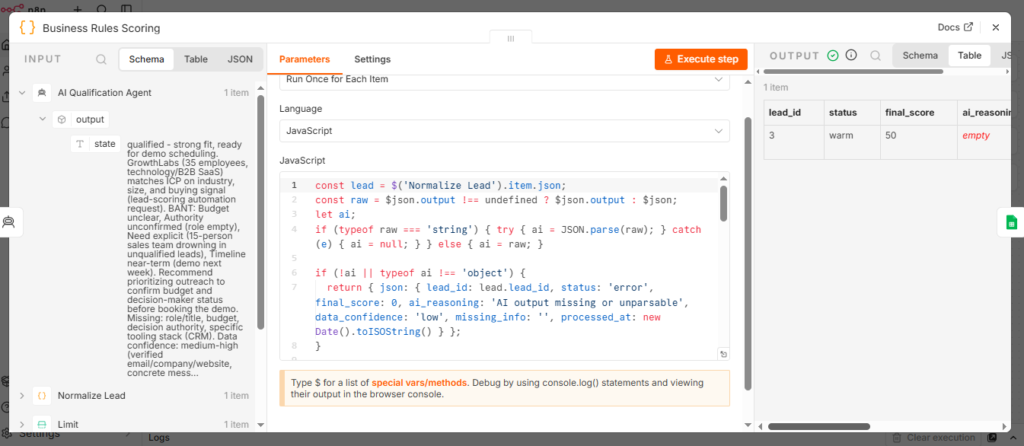
The AI does not decide the final score. It returns an advisory fit estimate and signals for budget, authority, need, and timeline.
JavaScript in the Business Rules Scoring node calculates the final score. It adds points for verified data, detailed messages, company details, high-intent sources, and strong BANT signals.
| Scoring rule | Points |
|---|---|
| Verified business email domain | +15 |
| Generic email provider | +5 |
| Company name provided | +10 |
| Website provided | +5 |
| Detailed message, 100 characters or more | +10 |
| Short message, 20 to 99 characters | +5 |
| AI fit score with high confidence | Up to +50 |
| AI fit score with medium confidence | Up to +40 |
| AI fit score with low confidence | Up to +25 |
| High budget signal | +10 |
| High authority signal | +10 |
| High-intent source | +10 |
The final score is capped between 0 and 100. A score of 75 or higher becomes hot. A score between 50 and 74 becomes warm. Anything below 50 becomes cold.
One safety rule sits above the score. If the AI marks the data as low confidence, the workflow will not label the lead hot. It downgrades the lead to warm so a person can review it.
You can change any of these weights inside the Business Rules Scoring node. If your business cares more about intent than company size, increase the points for demo requests, pricing pages, or referrals.
How do you take the workflow to production?
Three changes turn the test build into a system that runs on its own.
- Replace the Manual Trigger. Add a Schedule Trigger and run the workflow every 15 minutes.
- Raise the Limit node. The template processes one lead per run for testing. Set it to 25 or another safe batch size for production.
- Add a hot lead alert. Add an IF node after Business Rules Scoring. If the status equals hot, send a Slack message or Gmail alert to the sales team.
The failure handling is already built in. If the AI API fails, the lead stays pending and gets retried on the next run. If the AI returns output the workflow cannot read, the row is marked as error.
Before you hand the system to a client, add an error notification workflow. That way, you hear about failed runs before the client does.
What mistakes should you avoid?
Most AI lead qualification systems fail for predictable reasons. Avoid these five:
- Letting AI control the final score. Keep the score in business rules so results stay consistent and explainable.
- Running AI before saving the lead. Save the lead first. If the API fails, you still have the record.
- Skipping a unique lead ID. A unique ID helps retries update the same row instead of creating duplicates.
- Letting AI invent missing details. Tell the model to use only the data provided and list missing fields separately.
- Treating all data as equally reliable. A business email, a Gmail address, and a missing company name should not receive the same weight.
Also avoid building a fully autonomous agent when a fixed workflow is enough. If you already know the steps, data sources, and scoring rules, a controlled chain is easier to debug and more predictable.
Can you sell this as a client service?
Yes. Once the workflow works for your own leads, you can adapt it for clients.
A typical project has three parts: map the client’s lead sources and ICP, customize the workflow, and hand it over with a short support period.
For most clients, you will change four things:
- The ICP inside the AI system message.
- The scoring weights and hot, warm, and cold thresholds.
- The storage layer, such as Google Sheets, HubSpot, Pipedrive, or another CRM.
- The alert channel, such as Slack, Gmail, or WhatsApp.
If you move from Google Sheets to a CRM, you usually replace the two Google Sheets nodes with CRM nodes. The AI, scoring, and routing logic can stay the same.
For positioning, connect the build to a clear business outcome: faster follow-up, fewer missed leads, and better sales prioritization. You can link this to your CRM automation service page when relevant.
Who should not use this system?
This workflow is useful, but it is not right for every situation.
- Very high lead volume. Google Sheets can slow down as a queue. Use Postgres, Supabase, or a CRM at scale.
- Instant response needs. This version runs on a schedule. Use a webhook trigger if you need to qualify a lead the moment it submits.
- Regulated data. If you handle healthcare or financial lead data, review storage, consent, and compliance requirements first.
- Teams that want no human review. The agent prioritizes leads. It does not replace sales judgment.
Build the workflow, test it with the three dummy leads, then connect your real lead sources. Within a day, you can have a simple system that scores inquiries, explains its reasoning, and helps your team focus on the best opportunities.
Final thoughts: make the workflow fit your business
This workflow is a starting point, not a fixed system. Once it runs, adjust it around your actual lead sources, sales process, and ideal customer profile.
You can improve it in several ways. Add lead enrichment, connect a CRM, send instant alerts for hot leads, or replace the scheduled run with a webhook for real-time qualification.
You should also review the results with your sales team. If they disagree with a score, find out why and adjust the scoring rules. Over time, this feedback makes the agent more useful.
Keep the AI responsible for analysis and keep the final decision in your business rules. That balance gives you automation without losing control over which leads deserve attention.