
HubSpot Migration Guide: Move Your CRM Data Safely Without Losing a Single Record
HubSpot Migration Guide: Move Your CRM Data Safely Without Losing a Single Record. A HubSpot migration is the process of transferring contacts, companies, deals, tickets, custom properties, and engagement history from an existing CRM or data source into HubSpot’s Smart CRM — without corrupting, duplicating, or losing records. When done correctly, your team opens HubSpot on day one and finds clean, accurate, fully mapped data ready to use. When done incorrectly, businesses spend weeks cleaning up errors that cost pipeline and credibility.
This guide covers every stage of the process: what to expect, how to prepare, which migration method to use, and what happens after the data lands. Whether you are moving from Salesforce, Zoho, Pipedrive, Monday.com, or a spreadsheet, the same foundational principles apply.

What ‘HubSpot Migration’ Actually Means (And What Most Guides Get Wrong)
Replatforming vs. Data Migration — What Is the Difference?
Data migration refers specifically to moving structured records from one system to HubSpot. Replatforming is broader — it includes rebuilding workflows, pipelines, automations, email templates, and integrations inside HubSpot after the data arrives. Most migration failures happen because teams treat replatforming as a data-only task and skip the rebuild phase entirely.
Xynario’s HubSpot Solutions covers both phases — data migration and full replatforming — so nothing is left behind.
What Gets Migrated vs. What Gets Rebuilt from Scratch
Contacts, companies, deals, tickets, custom field values, notes, calls, emails, and meeting logs can all be migrated into HubSpot with the right approach. Workflows, sequences, dashboards, reports, and email templates cannot be imported — they must be rebuilt natively inside HubSpot. Understanding this distinction before you start prevents last-minute surprises.
Why Most CRM Migrations Fail Before They Start
The most common cause of migration failure is not a technical error — it is poor preparation. Teams export dirty data, skip the deduplication step, map fields incorrectly, and then import thousands of corrupted records. HubSpot does not validate the logic of your data, only its format. Garbage in equals garbage out.
What You Can (and Cannot) Migrate into HubSpot
HubSpot’s data model is built around objects: Contacts, Companies, Deals, Tickets, and custom objects available on Enterprise plans. Understanding what maps to what in HubSpot before you export from your existing CRM is the single most valuable thing you can do.
Contacts, Companies, Deals, and Tickets
These are the four standard CRM objects in HubSpot. Each has its own set of default properties and can be extended with custom properties. All four can be imported via CSV or through the API, and associations between them — for example, linking a deal to a contact and a company — must be set up explicitly during migration.
Custom Properties and Field Values
Any custom field in your current CRM must have a corresponding property created in HubSpot before importing. HubSpot will not auto-generate properties on import. Fields like lead source, customer tier, contract value, or product type need to be mapped manually before a single record moves.
Notes, Activities, and Engagement History
Calls, emails, meetings, and notes logged in your existing CRM can be migrated as engagement records in HubSpot. This preserves the full relationship history for your sales and service teams. However, this step is often skipped in DIY migrations because it requires more preparation than a standard contact import. See how CRM automation becomes far more effective when built on complete historical data.
What HubSpot Will Not Import Automatically
Automated workflows, pipeline stages, deal rotation rules, SLA settings, and reporting dashboards are not importable. These are configuration elements that must be rebuilt inside HubSpot. Attachments and binary file types also have limitations depending on your HubSpot subscription tier.
Pre-Migration Checklist: How to Prepare Your CRM Data Before You Touch Anything
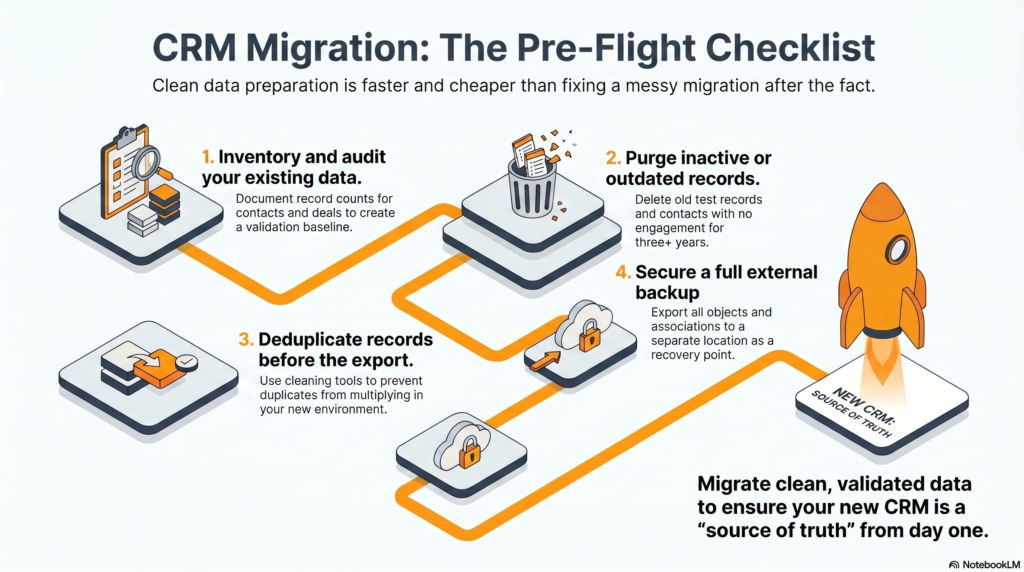
The preparation phase determines the quality of your migration. Skipping or rushing through it creates problems that take far longer to fix than the migration itself.
Step 1 — Audit and Inventory Your Existing Data
Document every object type, custom field, and data relationship in your current CRM. Identify record counts for contacts, companies, deals, and activities. This gives you a baseline to validate against after migration — if you start with 45,000 contacts and land with 38,000, you know something went wrong.
Step 2 — Decide What to Keep, Archive, or Delete
Not everything in your current CRM deserves to move. Inactive contacts with no engagement in three or more years, duplicate company records, closed-lost deals beyond a certain age, and test records created during onboarding should all be evaluated. Migrating clean data is always faster and cheaper than cleaning data inside HubSpot. Our CRM implementation guide for mid-market companies covers how to scope this decision by business size.
Step 3 — Deduplicate and Clean Records Before Export
Run a deduplication pass on your existing CRM before exporting. Tools like Dedupely, Insycle, or your CRM’s native merge function can reduce record volume and improve data quality before a single row enters HubSpot. Duplicates that arrive in HubSpot multiply quickly once your team starts adding new records on top of them.
Step 4 — Back Up Everything
Export a full backup of your existing CRM — all objects, all fields, all associations — before executing any migration step. Store this backup in a location separate from your active CRM environment. If the migration encounters a critical error, this backup is your recovery point.
Migrating FROM Your Current CRM — Platform-Specific Considerations
Each CRM exports data differently. The source platform directly affects how much pre-processing is required before importing into HubSpot.
Salesforce to HubSpot Migration
Salesforce uses Leads, Contacts, Accounts, and Opportunities as its primary objects. These map to HubSpot’s Contacts, Companies, and Deals — but not one-to-one. Salesforce Leads that have not been converted need to be evaluated individually. Custom Salesforce fields often use data types not supported natively in HubSpot, requiring property type adjustments before import. This is one of the most complex migration paths and benefits most from professional handling. See Xynario’s CRM and Automation Solutions for how we approach Salesforce transitions.
Zoho CRM to HubSpot Migration
Zoho CRM uses Leads, Contacts, Accounts, and Potentials. The object model is closer to HubSpot’s than Salesforce’s, which makes field mapping more straightforward. Zoho’s export function produces clean CSVs for most standard objects. The main challenge is preserving activity history, which Zoho stores in a format that requires conversion before HubSpot can recognize it as engagement records.
Pipedrive to HubSpot Migration
Pipedrive is deal-centric. Its Person and Organization objects map directly to HubSpot Contacts and Companies, and its Deals object maps cleanly. Pipedrive’s export quality is generally high. The primary consideration is pipeline stage mapping — Pipedrive stages need to be recreated in HubSpot before importing deals, or all deals will land in an unmapped state.
Monday.com to HubSpot Migration
Monday.com is a project management tool used informally as a CRM by some teams. It lacks a native CRM data model, which means data is often stored inconsistently across boards. Before migrating, standardize your Monday.com data into a consistent structure that matches HubSpot’s object model. This is the most labor-intensive migration path among common source systems.
Migrating from Spreadsheets or No CRM at All
Spreadsheet migrations are technically simple — HubSpot accepts CSV imports directly — but often contain the most inconsistent data. Column naming, date formats, phone number formats, and email formatting errors must all be corrected before import. For businesses with no previous CRM, this migration is also an opportunity to establish clean data standards from day one. Our post on the best CRM for e-commerce brands explains how data structure decisions at setup compound over time.

Choosing the Right HubSpot Migration Method
HubSpot provides multiple pathways for importing data. The right method depends on data volume, source format, and the complexity of your field structure.
HubSpot’s Native Import Tool — Best For Simple Migrations
HubSpot’s Import Tool accepts CSV files and supports importing contacts, companies, deals, tickets, and notes in separate files. It includes a field mapping interface that lets you match CSV columns to HubSpot properties during upload. For migrations under 50,000 records with straightforward field structures, this is the fastest and most accessible option.
HubSpot Smart Transfer — Best For Switching from Specific Apps
HubSpot Smart Transfer is a native feature designed to sync structured data from supported third-party applications directly into HubSpot without requiring CSV exports. It handles object association during the transfer process, reducing manual mapping work. Check HubSpot’s current list of supported apps before planning your migration around this method.
Third-Party Migration Tools — When to Use Them
Tools such as Trujay, MigrateMyCRM, and SyncMatters provide pre-built connectors between popular CRMs and HubSpot. They automate much of the field mapping and handle association transfers automatically. These tools are useful for mid-volume migrations where the source system is well-supported, but they carry per-record pricing that scales quickly on large datasets.
API-Based Migration — Best For Complex or Custom Data
HubSpot’s REST API supports full CRUD operations across all CRM objects and allows precise control over how records are created, associated, and validated during migration. For large datasets, complex association structures, or custom objects, API migration is the most reliable and auditable method. It requires developer involvement but produces the cleanest results. Xynario uses API-based migration for all enterprise-scale engagements. See our services overview for how this fits into our delivery model.
Hiring a HubSpot Migration Partner — When DIY Is Not Worth the Risk
For businesses with over 50,000 records, complex association structures, multiple source systems, or hard deadlines, working with a HubSpot migration partner eliminates the risk of data loss and reduces the time-to-value significantly. A qualified partner handles audit, mapping, execution, QA, and post-migration support. Contact Xynario to discuss your migration scope.

Step-by-Step HubSpot Migration Process
Step 1 — Configure Your HubSpot Account and Properties
Before importing any data, set up your HubSpot account structure. Create all custom properties, define pipeline stages, configure contact lifecycle stages, and set up any required custom objects. Importing data into an unconfigured account forces you to retroactively update thousands of records — an avoidable problem.
Step 2 — Map Fields from Your Old CRM to HubSpot
Create a field mapping document that connects every source field to its HubSpot equivalent. Flag any fields that require data type conversion — for example, a free-text revenue field in your old CRM mapping to a number property in HubSpot. Resolve all mapping questions before touching export files.
Step 3 — Run a Test Migration on a Sample Dataset
Export a sample of 500 to 1,000 records across each object type and run a test import. Validate that field values landed correctly, associations formed properly, and no records were duplicated. This test reveals mapping errors before they affect your full dataset.
Step 4 — Execute the Full Migration
Import objects in the correct order: Companies first, then Contacts, then Deals and Tickets, then Activities. This sequencing ensures that associations can be built correctly. Import during low-activity hours to minimize the impact on users actively working in the system.
Step 5 — Validate, QA, and Sign Off on Data Integrity
After the full import completes, compare record counts against your pre-migration audit, spot-check records across each object type, verify that associations are intact, and confirm that custom property values landed correctly. Do not enable the team on HubSpot until this validation step is complete.
The Most Common HubSpot Migration Mistakes
Skipping the Data Audit Phase
Teams that skip the audit phase import unknown quantities of duplicate, outdated, and malformed records. These records pollute HubSpot from day one and undermine trust in the system across sales and marketing teams.
Incorrect Field Mapping
Mapping a text field to a date property, or a multi-select field to a single-value dropdown, causes import errors or data truncation. Every field type mismatch must be resolved in the mapping document before execution — not discovered after the fact in HubSpot.
Importing Duplicates Into HubSpot
HubSpot deduplicates contacts by email address by default. Records without email addresses — or records from systems that allowed multiple contacts with the same email — can create duplicates that HubSpot does not automatically catch. Use HubSpot’s CRM automation features to set up deduplication workflows immediately after migration.
Forgetting to Migrate Historical Engagement Data
Contacts imported without their call logs, email history, and meeting notes arrive in HubSpot as if they were brand-new leads. Sales teams lose context on active accounts, service teams lose issue history, and the CRM loses one of its most valuable functions — institutional memory.
Post-Migration: The First 7 Days in HubSpot
How to Verify Your Data Landed Correctly
Run list-based spot checks across contact, company, and deal records. Pull a filtered view of records created during the migration window and compare property values against the source system. Verify that lifecycle stages, deal stages, and owner assignments transferred correctly.
Reconnecting Your Integrations and Workflows
Any integrations your team used in the previous CRM — marketing tools, support platforms, billing systems — need to be reconnected to HubSpot after migration. HubSpot’s email marketing integrations and native tools allow you to rebuild automated workflows faster than in most legacy systems.
Training Your Sales and Marketing Team
Post-migration is also the right moment to train your team on HubSpot’s native capabilities. Teams that adopt HubSpot without training revert to the habits they had in their previous CRM, bypassing features that directly improve pipeline performance. Pair this with AI lead scoring to help your sales team immediately prioritize the highest-value contacts in their migrated database.
How Long Does a HubSpot Migration Take?
Small Business (Under 10,000 Records)
With clean source data and straightforward field mapping, a small business migration can be completed in one to three days. This includes preparation, test migration, full import, and basic validation. The timeline increases significantly if the source data requires heavy cleaning.
Mid-Market (10,000–100,000 Records)
Mid-market migrations typically take one to two weeks end-to-end. The additional time accounts for more complex association structures, longer QA cycles, and the need for multiple test migration rounds before executing the full import.
Enterprise (100,000+ Records)
Enterprise migrations with multiple source systems, custom objects, and complex workflow rebuilds typically require three to six weeks or more. These engagements involve structured project phases: discovery, mapping, test migration, phased execution, QA, and handover.
HubSpot Migration Cost Breakdown
DIY Migration — Time vs. Cost Reality
HubSpot’s Import Tool is free to use, but the cost of a DIY migration is measured in team time and error recovery. A mid-market migration handled internally by a non-specialist typically involves 40 to 80 hours of preparation, execution, and post-migration cleanup — plus additional hours if data errors surface after go-live. Read our analysis of what poor CRM decisions cost B2B companies to understand the downstream consequences of data quality failures.
Third-Party Tool Pricing
Third-party migration tools typically charge per-record fees ranging from $0.01 to $0.10 per record, depending on the plan and source CRM. A 50,000-record migration can therefore cost between $500 and $5,000 for the tooling alone, not including staff time for setup, mapping, and validation.
Professional Migration Service Pricing
Professional migration services — including Xynario’s — are scoped based on record volume, source system complexity, number of object types, and whether replatforming is included. Compared to the internal cost of a DIY migration gone wrong, professional service pricing consistently delivers a better total cost of ownership. Contact Xynario for a scoped estimate.

Frequently Asked Questions About HubSpot Migration
Can I migrate from multiple CRMs at once into HubSpot?
Yes, but each source system requires its own export, cleaning, and mapping process. Merging data from multiple CRMs into a single HubSpot account multiplies the risk of duplicates and conflicting field values. A phased approach — migrating one source system at a time and deduplicating before the next phase — produces cleaner results.
Is my data secure during a HubSpot migration?
HubSpot’s Import Tool transmits data over HTTPS and stores records within HubSpot’s SOC 2 Type II certified infrastructure. When using third-party migration tools or API-based approaches, verify that the service provider meets equivalent security standards before sharing export files.
What happens to duplicate records during import?
HubSpot automatically merges contact records that share the same email address during import. For company and deal records, there is no automatic deduplication — duplicates must be identified and resolved manually or through a deduplication tool like Insycle after migration.
Will my historical data and activity logs carry over?
Engagement history — calls, emails, meetings, and notes — can be migrated, but it requires a separate import process from contact and deal records. It is not included in a standard CSV import. Most DIY migrations skip this step. Xynario includes historical data migration in its standard service scope.
Do I need a HubSpot subscription before migrating?
You need an active HubSpot account before importing data, but you do not need a paid tier to use the Import Tool or most API endpoints for standard objects. Custom objects, however, require a HubSpot Enterprise plan. Confirm your subscription level covers all required features before beginning.
Can I undo a HubSpot migration if something goes wrong?
HubSpot does not provide a one-click rollback for imported data. You can delete imported records individually or in bulk using list-based deletion, but associated engagement records and property history may not be fully reversible. This is why a pre-migration backup and a test migration on a sample dataset are non-negotiable steps before executing a full import. See our case studies for examples of how Xynario has recovered and re-executed failed migrations.

Why Businesses Trust Xynario for HubSpot Migrations
Xynario specializes in HubSpot migrations and replatforming for small businesses, mid-market companies, and enterprise teams. Every engagement follows a structured delivery process: data audit, field mapping, test migration, full execution, QA validation, and post-migration support.
Our Migration Process in 3 Steps
- Discovery & Audit — We document your existing CRM structure, record volumes, and data quality before any work begins.
- Mapping & Execution — We build your field mapping document, configure HubSpot, run a test migration, and execute the full import.
- QA & Handover — We validate data integrity, reconnect your integrations, and hand over a fully operational HubSpot environment.
Who We Have Helped
Xynario has managed HubSpot migrations across B2B SaaS, ecommerce, professional services, and agency sectors. Our team handles migrations from Salesforce, Zoho, Pipedrive, Monday.com, and spreadsheet-based systems. View client case studies or explore our full services portfolio.
Ready to Migrate to HubSpot? Let’s Make Sure You Don’t Lose a Thing.
Every day you wait to migrate is another day your team operates on a CRM that wasn’t built for where your business is going. Xynario handles the entire process — from audit to go-live — so your team opens HubSpot with clean, accurate, fully mapped data from day one. Get in touch with Xynario’s migration team at xynario.com/contact-us to scope your migration and get a timeline.