A burned sending domain never announces itself: replies slow down, meetings dry up, and nobody can say why. Copy tweaks rarely fix it, because the DNS records, mailbox volume, and list quality decided the outcome before anyone read the message. This B2B cold email deliverability checklist gives you 20 checks, each with a one-minute way to confirm it passes before your next send.
Summary: A B2B cold email deliverability checklist covers separate sending domains, SPF, DKIM, and DMARC, a slow ramp to 20 to 50 sends per mailbox per day, verified lists under 2% bounces, and a Postmaster Tools spam rate below 0.10%. Google publishes the authentication and spam-rate rules; the volume and bounce limits are operator consensus.
Key Takeaways
- Separate sending domains protect your primary domain, because mailbox providers track reputation per domain.
- SPF, DKIM, and DMARC must all show pass in the message header before the first send.
- Warmup tools are optional, and Google’s own guidance describes a slow volume ramp to engaged recipients instead.
- A cap of 20 to 50 cold sends per mailbox sits far below the 2,000 Google Workspace allows.
- A bounce rate above 4% on one mailbox is the signal to pause and re-verify the list.
- A weekly audit of spam rate, bounces, and placement catches problems before reply rates fall.
What Should You Check Before Sending a B2B Cold Email Campaign? (The 20-Point Checklist)
Work through the 20 checks in this B2B cold email deliverability checklist in order, because a failed domain or DNS record makes the later checks meaningless. Each row gives a quick test and a pass condition you can mark yes or no. Copy the tables into a shared sheet and tick them off before every new campaign.
Domain and Mailbox Infrastructure Checks (1-5)
Five checks cover the mailbox infrastructure behind every send: the domains, the mailboxes, and the way links are handled.
| # | Check | 60-second verification | Pass condition |
|---|---|---|---|
| 1 | Cold email sends from separate domains, not your primary website domain | Compare the From domain of every cold mailbox with your main company domain | No cold mailbox uses the primary domain |
| 2 | Each sending domain has a clean history | Run the domain through a blocklist lookup such as MXToolbox and confirm you registered it new | Not listed, and not an expired or previously used domain |
| 3 | Each domain carries a small number of mailboxes | Count mailboxes per domain in your admin console | 3 to 5 mailboxes per domain |
| 4 | Mail leaves through Google Workspace or Microsoft 365, not a self-hosted server | Check the domain in the Google Admin Toolbox CheckMX tool and confirm the provider in your admin console | The provider handles TLS and reverse DNS, and CheckMX reports no errors |
| 5 | Link tracking uses your own subdomain, or tracking is off | Send a test, hover over a link, and read the domain | The link uses your subdomain over HTTPS, or the message has plain links |
SPF, DKIM, and DMARC Checks (6-9)
Three DNS-based methods prove the mail is yours: SPF lists the servers allowed to send for your domain, DKIM adds a cryptographic signature to each message, and DMARC tells receivers what to do when those checks fail.
Under Google’s email sender guidelines, every sender needs SPF or DKIM, and anyone sending more than 5,000 messages a day to Gmail needs all three plus alignment.
| # | Check | 60-second verification | Pass condition |
|---|---|---|---|
| 6 | SPF: one record that lists your mail provider | Send a test to a Gmail account, open “Show original”, and read the SPF row | SPF: PASS, and the domain has only one SPF record |
| 7 | DKIM signing is on for the sending domain | Read the DKIM row in the same view | DKIM: PASS, with a 2048-bit key where your provider supports it (1024 bits is the minimum) |
| 8 | DMARC record is published with a reporting address | Look up the TXT record at _dmarc on your domain and read the DMARC row | DMARC: PASS, and the record starts with v=DMARC1 and includes rua |
| 9 | The From domain matches the SPF or DKIM domain (alignment) | Compare the domain in your From address with the domain beside dkim=pass | Same domain in both places |
Warmup and Volume Checks (10-13)
Four checks keep your sending pattern believable to a mailbox provider.
| # | Check | 60-second verification | Pass condition |
|---|---|---|---|
| 10 | Volume rises on a written ramp | Read the daily send count per mailbox for the last 14 days | Increases follow the plan, with no overnight doubling |
| 11 | Each mailbox stays inside a cold-send cap | Add up daily sends per mailbox, including any warmup messages | 5 to 10 cold sends a day in week one, then 20 to 50 once warmed |
| 12 | The first sends go to your best-fit, verified contacts | Review the first 100 contacts a new mailbox will email | Every contact is verified and closely matches your target buyer |
| 13 | Sending runs at a steady rate | Check the hourly send pattern in your sending tool | Messages spread across the working day, with no burst of the full daily volume |
List Hygiene and Bounce Checks (14-17)
Four checks keep bad addresses out of the send. A hard bounce is a permanent delivery failure, and a catch-all is a domain that accepts mail for any address, so verification cannot confirm the mailbox exists.
| # | Check | 60-second verification | Pass condition |
|---|---|---|---|
| 14 | Every address was verified recently | Check the verification date on the list | Verified within the last 30 to 60 days |
| 15 | Catch-all, role-based, and unknown results are separated from verified addresses | Filter the list by verification status | Verified addresses go first, and risky groups go out in small batches |
| 16 | Hard bounces go to a permanent suppression list | Add a known-bad address to a test campaign and confirm the tool blocks it | The suppression list applies to every mailbox and campaign |
| 17 | Bounce rate is tracked per mailbox | Read the 14-day bounce rate for each mailbox in your sending tool | Under 2%, and any mailbox above 4% is paused |
Copy, Compliance, and Monitoring Checks (18-20)
Three last checks cover the message itself and the numbers that warn you when something breaks.
| # | Check | 60-second verification | Pass condition |
|---|---|---|---|
| 18 | Subject line and sender name are accurate | Read the subject against the body and check the display name | No fake “Re:” or “Fwd:”, no deceptive display name, and links are visible |
| 19 | Sender identity and opt-out are in every email | Send a test and use the opt-out | A physical postal address is present, and opt-outs are honored within 10 business days |
| 20 | Spam rate is monitored in Postmaster Tools | Open the spam rate chart for your sending domain | Below 0.10%, and never at 0.30% |
Pro Tip
Keep one sheet row per domain with its registration date, mailbox count, and last audit date, so a failing domain is easy to find and retire.
What Do Gmail, Yahoo, and Outlook Actually Enforce, and What Is Operator Folklore?
Provider-published rules cover authentication, spam rate, and unsubscribe handling, while the volume and bounce numbers that circulate in cold email communities come from operators. Separating the two shows which checks protect you from a block and which are habits that lower risk. The comparison table at the end of this section keeps them apart.
The February 2024 Bulk Sender Rules in Plain English
Since February 1, 2024, Google’s email sender guidelines ask every sender to use SPF or DKIM, keep valid reverse DNS (a PTR record that links your sending IP to a hostname), use a TLS connection, and hold the spam rate below 0.3%.
Senders above 5,000 messages a day to Gmail also need DMARC, aligned From domains, and one-click unsubscribe on marketing mail.
Google’s page describes personal Gmail accounts, and its sending practices section tells senders not to message people who never signed up. Cold outreach sits close to that line, so complaints are your main risk, and authentication is the minimum rather than the goal. Yahoo introduced similar rules at the same time, according to Suped’s summary.
Spam Complaint Rate Limits: The 0.3% Cap and the Unconfirmed 0.1% Report
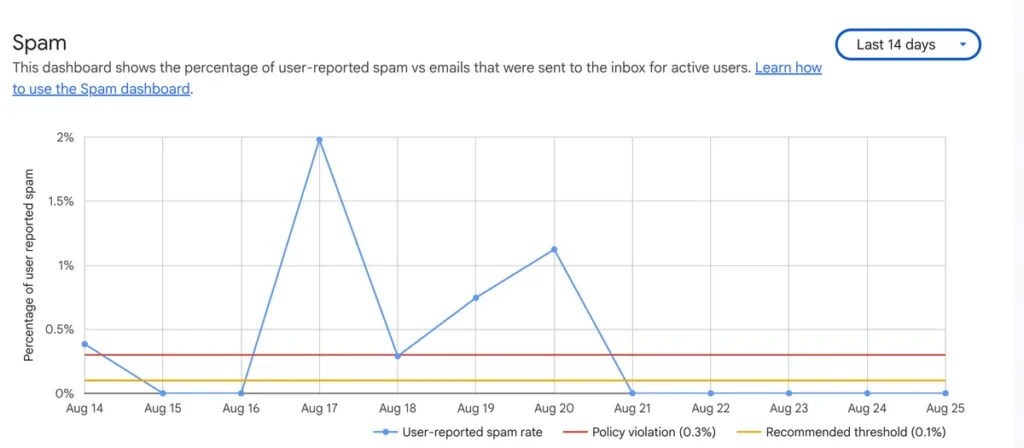
Google tells senders to keep the spam rate in Postmaster Tools below 0.10% and to avoid ever reaching 0.30%, and both limits appear on the same sender guidelines page.
A July 2026 article from Something Inc. said Google cut the threshold from 0.3% to 0.1%, but the agency’s later deliverability playbook calls that framing a characterization that the primary sources do not document.
What did change is a warning: emailexpert reported that Postmaster Tools now flags a spam rate above 0.1%, and the Postmaster Tools v2 dashboard plots both the 0.1% recommended line and the 0.3% violation line.
Key Takeaway
A spam rate only counts complaints from mail that reached the inbox, so filtered mail cannot be reported, and a low number can hide a placement problem. Pair the rate with a placement test every week.
What Outlook and Microsoft 365 Recipients Check Differently
Microsoft rejects mail with a 550 5.7.515 error when a domain that sends more than 5,000 emails a day to consumer Outlook.com addresses fails its authentication requirements.
That rule covers Outlook.com, Hotmail, and Live addresses, so it does not describe how a company’s Microsoft 365 tenant filters your mail. Treat it as a floor for the consumer side, and test placement on real business mailboxes as well.
If you send from Microsoft 365 yourself, Microsoft canceled its planned 2,000-recipient external limit per mailbox in January 2026, while the 10,000 recipient rate limit and a tenant-wide external limit stay in place. One admin blog reports that brand-new tenants get lower external caps during their first month.
Official Rules vs. Operator Folklore (Comparison Table)
This table separates what a provider documents from what operators repeat, and the second group should be treated as planning defaults, not rules.
| Rule or number | Who sets it | Status |
|---|---|---|
| SPF or DKIM from every sender; SPF, DKIM, and DMARC above 5,000 messages a day to Gmail | Documented | |
| Spam rate below 0.10% as the goal, never 0.30% | Documented | |
| One-click unsubscribe on marketing mail above 5,000 messages a day | Documented | |
| TLS, valid reverse DNS (PTR), and RFC 5322 message formatting | Documented | |
| SPF, DKIM, and DMARC above 5,000 emails a day to consumer Outlook.com addresses | Microsoft | Documented, with rejections under code 550 5.7.515 |
| 20 to 50 cold sends per mailbox per day | Operator guides | Consensus; the range shifts by source and no provider documents it |
| Bounce rate under 2%, pause above 4% | Operator guides | Consensus; no provider documents it |
| 3 to 5 mailboxes per domain | Operator guides | Consensus; no provider documents it |
| Warmup of three to six weeks | Operator guides | Consensus; durations vary by source |
| “Google cut its threshold to 0.1% in July 2026” | Secondary reports | Not documented as a rule; 0.1% is the long-standing target that Postmaster Tools now flags |
Do You Need Separate Sending Domains for Cold Email?
Yes, because Gmail tracks sending volume, feedback, and limits per domain, so a bad campaign on your main domain drags down the mail your team sends every day, as the sender guidelines describe.
What One Bad Campaign Does to Your Primary Domain
Google states that frequent spam reports lower a domain’s reputation and that improvements take time to show up in spam classification. A sending domain you can replace turns that slow recovery into a small purchase instead of a company-wide mail problem.
Picture invoices, support replies, and a cold sequence all sent from one domain. If the sequence draws complaints, Gmail sees a single domain with a high spam rate, so the invoices land in spam along with the pitch.
How to Buy Sending Domains Without Inheriting a Burned Reputation
Register fresh brand-variant domains yourself, such as getexample.com or tryexample.com, instead of buying expired or aftermarket names whose past use you cannot see.
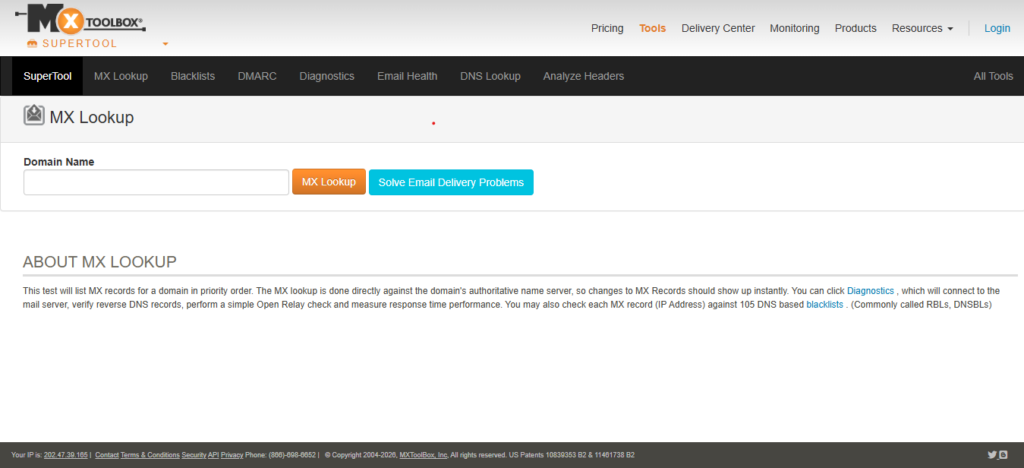
Before connecting mailboxes, run the new domain through a blocklist lookup such as MXToolbox and confirm that SPF, DKIM, and DMARC pass on a test message.
Pro Tip
Redirect each sending domain to your main website, so a prospect who checks the sender’s domain finds a real company.
How Do You Set Up SPF, DKIM, and DMARC for Cold Outreach? (Copy-Paste DNS Records)
Publish one SPF record, switch on DKIM signing in your mail admin console, and add a DMARC record at p=none with a reporting address.
Email domain authentication needs three records, all added at the company that hosts your DNS, which is often your domain registrar.
SPF Records for Google Workspace and Microsoft 365 (and the 10-Lookup Limit)
SPF is a DNS text record that lists the servers allowed to send mail for your domain. Google’s documentation gives the Workspace record below, and Microsoft 365 uses its own include value.
# Google Workspace
Type:  TXT
Host:  @
Value: v=spf1 include:_spf.google.com ~all

# Microsoft 365
Type:  TXT
Host:  @
Value: v=spf1 include:spf.protection.outlook.com -all
Publish only one SPF record per domain, because multiple SPF records cause validation errors, and merge any extra sending tool into the same line before the final all.
SPF also allows at most 10 DNS lookups, and each include counts toward that total, so keep the total under 10 when you add tools.
DKIM: Generate, Publish, and Verify (1024-bit vs. 2048-bit)
DKIM signs every outgoing message with a private key, and receivers check the signature against a public key you publish in DNS. Google requires a DKIM key of 1024 bits or longer for personal Gmail and recommends 2048 bits when your provider supports it.
In Google Workspace, generate the key in the Admin console, publish the TXT record it shows, and then switch signing on. Microsoft 365 uses two CNAME records, and its admin portal shows the exact targets for your tenant.
Here is the Microsoft 365 pattern for example.com, using Microsoft’s sample tenant name, Contoso:
Type:  CNAME
Host:  selector1._domainkey.example.com
Value: selector1-example-com._domainkey.contoso.onmicrosoft.com

Type:  CNAME
Host:  selector2._domainkey.example.com
Value: selector2-example-com._domainkey.contoso.onmicrosoft.com
DMARC: Start at p=none With Reporting, Then Tighten
DMARC is a DNS policy record that tells receivers what to do when SPF and DKIM fail, and where to send reports about it.
Start at p=none with a reporting address, because Google allows a none policy for bulk senders in its sender guidelines.
Type:  TXT
Host:  _dmarc
Value: v=DMARC1; p=none; rua=mailto:[email protected]
Move to quarantine only after the reports show that all of your legitimate mail passes.
Warning
Do not jump straight to p=reject on a new domain. One misconfigured sending tool can then cause your own legitimate mail to be rejected.
How to Confirm spf=pass, dkim=pass, dmarc=pass in 60 Seconds
Send a test message from the new mailbox to a personal Gmail address, then read the authentication rows in the original message.
- Open the message in Gmail, click the three dots, and choose Show original, as Triggerbee’s walkthrough shows.
- Read the SPF, DKIM, and DMARC rows; each one should say PASS.
- Check that the domain beside dkim=pass matches the domain in your From address, which confirms alignment.
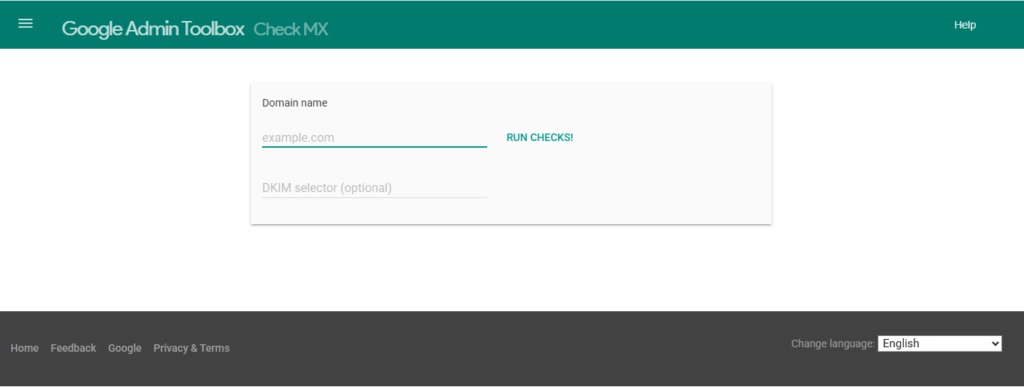
- If a row fails, run the domain through Google’s CheckMX tool and fix the record it flags.
- Send a second test after the fix, because DNS changes can take time to appear.
Custom Tracking Domains: The CNAME Record That Keeps Links on Your Own Domain
A custom tracking domain is a subdomain you own that points to your sending tool’s tracking server through a CNAME record, so click-tracked links show your domain instead of a shared one.
Type:  CNAME
Host:  track
Value: the tracking hostname listed in your sending tool's settings
After adding it, send a test, click the link, and confirm the page loads over HTTPS without a certificate warning.
Open tracking adds little proof of deliverability, because Google does not track open rates and cannot verify the numbers third parties report, so you can switch it off without losing a delivery signal.
Do Email Warmup Tools Work in 2026? What Helps, What Is Placebo, What Hurts
The evidence supports warmup as a slow volume ramp with real recipients, and it is far less settled for email warmup tools that exchange automated messages between member mailboxes.
Google’s sender guidelines tell senders to start with a low volume, send to engaged users, avoid bursts, and increase slowly, and the same page does not mention warmup networks.
Why Shared Warmup Pools Can Get Fingerprinted
MailReach, a warmup vendor, states that all email warmers operate in networks where your activity interacts with other users’ mailboxes, so your reputation can be influenced by how the whole network behaves.
The same page adds that providers can spot inauthentic engagement and may penalize it.
A peer-reviewed review notes that Gmail, Yahoo, and Outlook use machine learning in their filters, and repeated scripted patterns across thousands of accounts are the kind of signal such models can learn.
The Warmup Decision Framework by Domain Age and Sending Volume
Four situations cover most senders, and the verdict depends on domain age and volume.
| Situation | Verdict | Why |
|---|---|---|
| New domain, under 20 cold sends a day per mailbox | Manual ramp; a tool is optional | Real sends to relevant contacts carry the signal Google describes |
| New domain, many mailboxes at 30 or more sends a day | Manual ramp plus a measured tool trial | Volume is where mistakes compound, so prove the tool improves placement before paying for every mailbox |
| Aged domain with steady sending history | No tool | Consistent daily sending already builds reputation |
| Domain recovering from a complaint spike or blocklist | Pause first, then re-ramp | Google says a high spam rate leads to more spam classification and recovers slowly, and warmup messages do not remove complaints |
No provider publishes warmup rules by domain age, so this framework is a judgment drawn from the sources above.
How to Tell Whether Warmup Actually Helped (Without Trusting the Tool’s Score)
Measure placement yourself, because the numbers inside a warmup dashboard come from the tool, not from Google.
“Google doesn’t track open rates.”
Google, Gmail Help: Email sender guidelines
The same page adds that Google cannot verify open rates reported by third parties and that low open rates are not a reliable sign of spam classification.
Use a before-and-after placement test instead.
- Before the ramp starts, send the same plain-text message to 10 test accounts you control across Gmail and Outlook, and record how many reach the inbox, promotions, and spam.
- Run the ramp for two weeks, with or without a tool.
- Repeat the test with a similar message and compare the counts.
- Check the per-mailbox bounce rate and the Postmaster Tools spam rate over the same period.
- If you pay for a tool, keep one comparison mailbox on the manual ramp where your volume allows it.
A Six-Week Ramp Schedule for a New Mailbox
A six-week ramp reaches the 40 to 50 sends per day cap in week five, following the weekly schedule one cold email platform publishes.
| Week | Cold sends per mailbox per day | Gate before the next step |
|---|---|---|
| 1 | 5 to 10 | Bounce rate under 2% |
| 2 | 10 to 20 | Bounce rate under 2% and spam rate under 0.10% |
| 3 | 20 to 30 | Same gates, plus a clean placement test |
| 4 | 30 to 40 | Same gates |
| 5 and 6 | 40 to 50 | Hold at the cap and keep auditing weekly |
Schedules differ: MailReach’s example reaches 50 sends a day by day 15, so pick the slower path for a brand-new domain.
Note
Daily caps in most operator guides include warmup messages, so a mailbox that sends 25 warmup emails has about 25 slots left for cold sends, as Prospeo explains.
How Many Cold Emails Can One Mailbox Send Per Day?
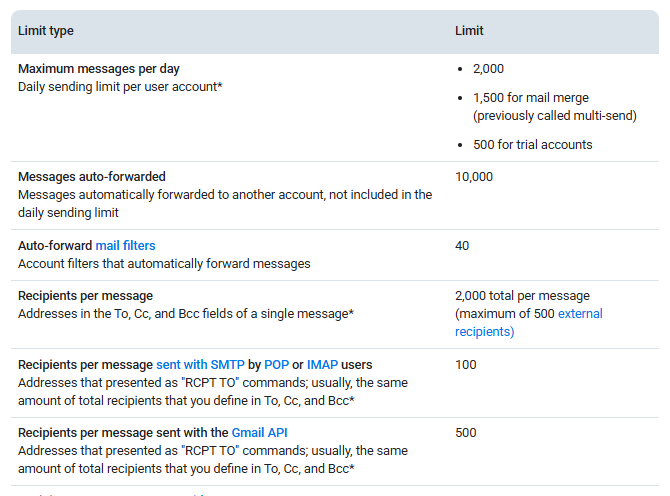
A warmed mailbox can send about 20 to 50 cold emails per day, even though Google Workspace allows 2,000 messages per user per day (500 on trial accounts).
Why the Practical Cap Is 20 to 50, Not Your Provider’s Technical Limit
The 2,000 figure is a technical ceiling that protects Google’s systems, and it says nothing about how much cold mail your reputation can absorb.
Operator guides converge on 30 to 50 per warmed mailbox, as Smartlead’s volume guide and Prospeo’s volume guide both show, while one practitioner article puts the range at 20 to 40.
Treat the spread as moderate confidence, since the figures come from operator experience rather than provider documentation.
How Many Domains and Mailboxes Your Monthly Volume Needs (Sizing Table)
Divide your daily sends by the per-mailbox cap to get the mailbox count, then divide mailboxes by the number per domain to get the domain count.
The table assumes four mailboxes per domain, the middle of the 3 to 5 range that Prospeo suggests, and rounds up.
| Daily sends | Monthly sends (22 sending days) | Mailboxes at 30 a day | Mailboxes at 50 a day | Domains at 30 a day | Domains at 50 a day |
|---|---|---|---|---|---|
| 150 | 3,300 | 5 | 3 | 2 | 1 |
| 300 | 6,600 | 10 | 6 | 3 | 2 |
| 600 | 13,200 | 20 | 12 | 5 | 3 |
| 1,000 | 22,000 | 34 | 20 | 9 | 5 |
Key Takeaway
Add mailboxes and domains to grow volume. One mailbox pushed toward 100 sends a day carries more risk than ten mailboxes at 30.
How Do You Stop Cold Emails From Going to Spam? List Hygiene That Protects Your Domain
Verify every address, separate risky results, suppress hard bounces for good, and pause any mailbox whose bounce rate passes 4%.
What Do 2%, 3%, and 5% Bounce Rates Mean for Your Campaign?
Bounce thresholds come from operator data, not from a provider, and Smartlead reports a median bounce rate of 1.54% across more than 850 million sends in its 2026 State of Cold Email report.
| Bounce rate (14-day, per mailbox) | Reading | Action |
|---|---|---|
| Under 2% | Healthy | Keep the current volume |
| 2% to 4% | Warning: list quality is drifting | Re-verify the list and hold volume steady |
| Above 4% | Reputation damage starts to compound on a mailbox with 100 or more sends | Cut volume by half, re-verify, and recheck in 14 days |
| Above 6% | Damage compounds faster, often within two weeks | Pause the mailbox and fix the data before any further send |
Why Do Verified Lists Still Bounce?
Verified lists still bounce because B2B data decays by roughly 2% to 3% a month as people change jobs, according to FullEnrich.
Catch-all domains add a second gap: they accept mail for any address, so a verifier can mark the address as risky but cannot confirm the mailbox exists.
Re-verify any list older than 30 to 60 days, and run the check again right before a large send.
How to Batch Catch-Alls, Role Addresses, and Unknown Results
Send to verified addresses first, and handle the risky groups in small batches from mailboxes with clean bounce histories.
- Catch-all domains: send a small batch and watch bounces for a few days before sending more.
- Role addresses such as info@ or sales@: send them last, because outcomes are harder to predict.
- Unknown results: hold them back until a second verification pass returns a clear answer.
Why Hard Bounces Must Be Suppressed Permanently
A hard bounce is a permanent failure, so the address belongs on a permanent suppression list shared by every mailbox and campaign.
Re-importing a fresh export can bring those addresses back, so check each new list against the suppression list before it enters a sequence.
Google lists automatically unsubscribing recipients who have multiple bounced messages as an accepted practice.
Warning
Google’s guidelines list buying email addresses and messaging people who never signed up as practices to avoid. Cold outreach already sits near that line, so a purchased list raises complaint risk further.
What Cold Email Copy Passes Spam Filters Without Killing Reply Rates?
Copy passes filters when it is honest about who sent it and why, uses few links, and contains nothing a filter can read as a trick.
How Spam Filters Actually Score a Message
Filters score a message on its content and on the signals around it, and a peer-reviewed review describes content-based filtering with classifiers such as Naive Bayes and support vector machines.
Google publishes the content rules it expects, and the list is short:
- Accurate subject lines and headers, with no “Re:” or “Fwd:” unless the message is a real reply or forward.
- No emojis or symbols that imitate graphics to deceive recipients.
- No hidden content, such as text concealed with HTML or CSS.
- Visible links that tell recipients what to expect when they click.
- Clear sender information, including an honest display name.
Plain Text, Links, and Images: What to Use and What to Skip
Keep the first touch short and mostly plain text, show full link destinations, and skip images and attachments, because every extra element is one more signal for a filter to misread.
Google warns that hidden HTML or CSS content might cause messages to be marked as spam, and it asks that links be visible and easy to understand.
Relevance does the rest, because Google notes that recipients who want your messages are less likely to report them as spam, and

the Xynario guide to personalization and intent data explains how to find those recipients.
Follow-Ups That Do Not Compound the Damage
Stop the sequence the moment a contact replies, bounces, or opts out, because each extra send to those contacts adds complaint and bounce risk without adding any chance of a meeting.
- Stop on reply, including replies that say no or ask to be removed.
- Stop on bounce, then add the address to the suppression list.
- Stop on opt-out, and apply it across every mailbox.
- Keep one sender per sequence, so a prospect does not receive follow-ups from several mailboxes.
Pro Tip
Write the subject line last and read it against the body. If the body does not deliver on the subject, rewrite the subject, because a misleading line is both a filter signal and a legal risk.
Is Cold Email Legal? CAN-SPAM, GDPR, CASL, and PECR Compared
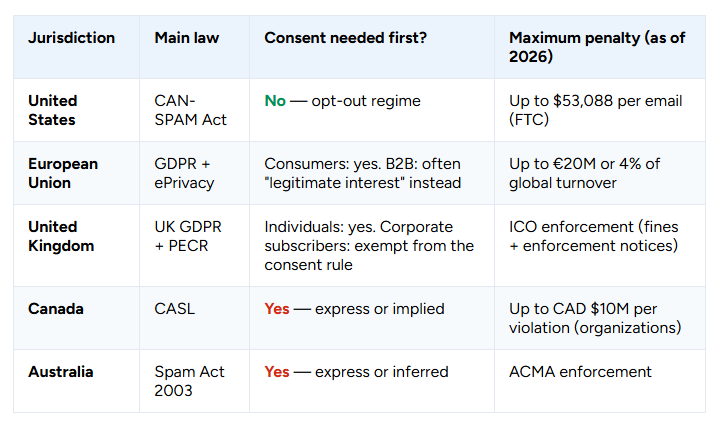
Yes, B2B cold email is legal in the US, UK, and EU when you follow each region’s rules, and Canada requires consent first.
This is general information and not legal advice, so confirm the details for your markets with a qualified lawyer.
Compliance Table by Jurisdiction (Consent, Opt-Out, Identification)
The table compares the four regimes most cold senders meet.
| Region and law | Consent for B2B cold email | Identification and opt-out | Maximum penalty |
|---|---|---|---|
| United States, CAN-SPAM | No prior consent required | Honest headers, a physical postal address, and an opt-out honored within 10 business days, per the FTC compliance guide | Up to $53,088 per email |
| European Union, GDPR and ePrivacy | Legitimate interest can support B2B direct marketing, since Recital 47 allows it, and national ePrivacy rules also apply | Honor objections and be clear about who you are | Up to 20 million euros or 4% of worldwide turnover, under Article 83 |
| United Kingdom, PECR and UK GDPR | No consent needed for corporate subscribers; individuals need consent or a soft opt-in, per the ICO | Identify yourself and give a valid address for opt-outs | Enforced by the ICO |
| Canada, CASL | Consent required before sending, with limited exemptions such as existing business relationships | Identify yourself and provide working unsubscribe | Up to CAD $10 million per violation for businesses, per the Government of Canada |
The Washington CEMA Lawsuit Risk for Deceptive Subject Lines
Washington’s Commercial Electronic Mail Act bars false or misleading subject lines in commercial email to Washington residents, and courts have cleared the way for class actions over subject lines that fake urgency or promise discounts.
Plaintiffs’ firms have filed nearly 100 such class actions, according to a law firm review.
A 2026 amendment, HB 2274, took effect June 11, 2026, and Emailchaser’s summary reports that damages fell to $100 per violation and now require the sender’s knowledge, so confirm the current terms with counsel.
A 7-Point Compliance Check Before You Send
Run these seven checks on every template before it goes live.
- Truthful subject line: it describes the email, with no fake “Re:” and no invented urgency or discounts.
- Accurate sender identity: the From name and signature name a real person and company.
- Physical postal address in every message.
- Working opt-out in every message, honored within 10 business days at most and ideally the same day.
- Reply-based opt-outs count: a “stop” reply goes on the suppression list across all mailboxes, so someone must read replies and act on them.
- Jurisdiction tags: mark Canadian contacts and UK sole traders, because they follow stricter rules.
- Source records: keep a note of where each contact came from and why you contacted them, which supports a legitimate interest assessment under GDPR.
Note
Sole traders and some partnerships count as individual subscribers under PECR, so a limited company’s mailbox and a freelancer’s mailbox follow different rules, as LegalVision explains.
What Should You Monitor Every Week? The Cold Email Deliverability Audit Scorecard
Each week, check spam rate, bounce rate, authentication, blocklists, and inbox placement, then score every item as pass, partial, or fail.
A cold email deliverability audit works only as a habit, so put it on the calendar and treat any fail as a reason to pause new sends on that mailbox.
Weekly Metrics: Postmaster Tools, Bounces, Inbox Placement, Blocklists
- Spam rate is the one complaint signal Google publishes, so it is the earliest warning for Gmail recipients.
- Bounce rate shows list health per mailbox and reacts first when data decays.
- Authentication can break after a DNS edit or a new sending tool, so retest it weekly.
- Blocklist status flags a listed domain or sending IP before replies drop.
- Inbox placement is the only metric that shows the folder your mail actually reaches.
The Scoring Sheet: How to Score Each Check as Pass, Partial, or Fail
Score each check against the red lines below, and treat any fail as a stop sign for that mailbox.
| Check | Pass | Partial | Fail |
|---|---|---|---|
| Spam rate (Postmaster Tools) | Below 0.10% | 0.10% to 0.29% | 0.30% or higher: pause the domain |
| Bounce rate (14-day, per mailbox) | Below 2% | 2% to 4% | Above 4%: cut volume by half and re-verify |
| Authentication headers | SPF, DKIM, and DMARC all pass | One row missing or unaligned | Any row fails |
| Blocklists | Not listed | Listed, placement unaffected | Listed and placement falling |
| Inbox placement | Inbox at every provider tested | Promotions or mixed results at one provider | Spam folder at any provider |
| Volume change | Follows the written ramp | Unplanned jump | Volume doubled overnight |
The spam-rate lines come from Google, the bounce thresholds are operator figures, and the placement and blocklist rows are practical rules of thumb.
Free Tools That Cover the Whole Audit
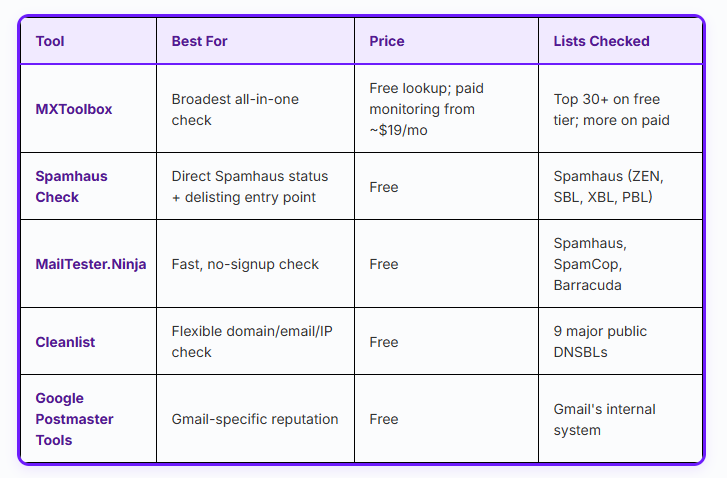
Every check above runs on free tools: Google Postmaster Tools, Gmail’s Show original view, Google’s CheckMX, MXToolbox’s blocklist lookup, and a handful of seed accounts you create yourself.
Create the seed accounts once, label them by provider, and reuse them every week so results stay comparable.
Key Takeaway
A passing scorecard with falling replies points to targeting or offer, since the scorecard shows whether mail can arrive and not whether anyone wants it.
What Is the First Thing to Fix When Cold Email Deliverability Drops Suddenly?
Start with inbox placement, then check complaints, bounces, blocklists, authentication, and finally copy and tracking, one at a time.
Changing several things at once hides the cause, so make one change per check and recheck before the next.
The 48-Hour Diagnostic Order
Work steps 1 and 2 in the first hour and finish the rest within 48 hours.
- Confirm the drop with a placement test to your seed accounts, and note which provider is affected.
- Read the spam rate in Postmaster Tools; above 0.10% means pause sending from that domain while you investigate.
- Check bounces per mailbox and read the SMTP codes, since Google lists 5.7.26 for failed authentication and 5.7.1 for a suspended shared IP.
- Look up blocklists for the domain and the sending IP.
- Retest authentication with a fresh message, because a DNS edit or new tool may have broken a record.
- Review what changed in copy, links, tracking domain, or list source during the last week.
Should You Recover or Retire a Burned Domain? (Decision Tree)
Recover a domain when the cause is known and fixable, and retire it when a clean restart still lands in spam.
| Signal | Scope | Action |
|---|---|---|
| One mailbox above 4% bounce | Mailbox | Cut volume by half, re-verify the list, and recheck in 14 days; Smartlead advises retiring the mailbox if bounces stay above 3% |
| Spam rate at or above 0.30% | Domain | Pause the domain, fix the list or copy, and restart from week-one volume; Red Sift notes that Google ties mitigation eligibility to seven consecutive days under 0.30% |
| Spam folder at several providers after the fix | Domain | Retire the domain if a clean four-week re-ramp still fails |
| Authentication failure | Domain | Fix the records and retest; no retirement needed |
The four-week rule is a planning default drawn from the ramp schedule above, not a provider rule.
Blocklist Removal and Re-Warming: What Actually Works
Fix the cause first, then request removal through the blocklist operator’s own process, because delisting without a fix only invites a second listing.
Public blocklists are one signal among several, and Cleverly notes that Gmail runs its own internal reputation system, so a clean lookup does not guarantee inbox placement.
Warning
Restarting at the old daily volume repeats the spike that caused trouble. Google warns that suddenly doubling volume can bring rate limiting or reputation drops, so restart at week-one numbers.
How Much Does a Cold Email Infrastructure Stack Cost in 2026?
A stack for 600 cold emails a day, built from 20 mailboxes on 5 domains, costs about $144 to $176 a month for domains and mailboxes, or roughly $11 to $13 per 1,000 emails sent.
The math assumes 22 sending days a month (13,200 emails), Google Workspace or Microsoft 365 seats at $7 to $8.40, and .com domains at the prices in the table.
Cost Table: Domains, Mailboxes, Verification, and Seed Tests
| Item | Quantity | Unit price | Monthly cost |
|---|---|---|---|
| Sending domains | 5 .com domains | $10.46 to $18.68 per year depending on the registrar | $4 to $8 |
| Mailboxes | 20 seats | $7 on annual billing to $8.40 on monthly billing for Google Workspace; Microsoft 365 Business Basic is $7 on annual billing | $140 to $168 |
| Core subtotal | $144 to $176 | ||
| Warmup tool (optional) | 20 mailboxes | $15 to $50 per mailbox per month | $300 to $1,000 |
| List verification | 1,000 new contacts | About $0.01 per address | About $10 |
| Placement tests | Weekly | Varies by tool | Check current plans |
A warmup tool at $15 to $50 per mailbox costs roughly two to six times the mailbox seats it supports, so test it before buying it for every mailbox.
Note
These figures leave out your time for DNS setup, domain rotation, and the weekly audit, and vendors change prices often, so check each pricing page before budgeting.
The Cost of One Burned Domain vs. the Cost of Doing It Right
Replacing one burned domain costs about $38 to $52 in the first month: one domain at $10.46 to $18.68 plus four mailboxes at $7 to $8.40.
The larger loss is volume: four mailboxes that normally send 120 emails a day send only 20 to 40 a day in week one of the ramp.
If your primary domain burns instead, the loss includes everyday business email, which no purchase replaces quickly.
Should You Build This Yourself or Hand It Off? (And Who Should Not Outsource)
Build it yourself when you send under about 150 emails a day and someone on your team can edit DNS and read message headers.
Hand it off when volume, domain count, or the weekly audit outgrows that person’s time.
| Factor | Build in-house | Hand off |
|---|---|---|
| Daily volume | Under about 150 emails | 600 emails or more |
| Domains and mailboxes | 1 to 2 domains and about 5 mailboxes | 5 or more domains and 20 or more mailboxes |
| Technical owner | Someone edits DNS and reads headers | No one owns the weekly audit |
| Time available | Room for audits and domain replacement | Setup and audits compete with selling |
Xynario’s B2B email marketing service covers cold outreach and list hygiene as a managed offering, which fits teams that want the sending side handled for them.

If you are still hiring the people who will send these emails, the guide to building an outbound SDR team in 2026 covers that part of the work.
Some teams should keep this work in-house, or fix something else first:
- Very low volume: a team sending under about 150 emails a day with one technical owner gains little from a hand-off.
- No verified list: infrastructure cannot repair complaints that come from poor targeting.
- No consent plan for Canadian contacts or UK individuals: sending setup does not fix legal exposure.
- No one to answer replies: deliverability work is wasted when replies sit unread.
Key Takeaway
A hand-off buys time, not targeting. No sending setup fixes a list of people who do not want your offer.
Final Thoughts
A cold campaign succeeds or fails on four things you control before the first email: separate domains, passing authentication, a slow volume ramp, and a clean list.
Run the 20 checks today, fix the first failing layer, and put the weekly scorecard on your calendar so problems show up as numbers before they show up as silence.
Cold email also sits inside a wider pipeline, so pair this setup with the channel choices in Xynario’s guide to B2B lead generation strategies.